

Skip to content
Learn MikuMikuDance – MMD Tutorials – Free 3D Animation Software

Learn MikuMikuDance – MMD Tutorials – Free 3D Animation Software

Download Free Animation Software – Let's Learn How to Do Everything!

  • Step-by-Step MMD instructions
  • DOWNLOADS
  • Troubleshoot, Fix MMD
  • Site Contents
  • Reggie Replies Q&A
  • Homework!
  • What IS MMD?
    • Download MikuMikuDance Newest Latest Version of MMD
  • “HOW TO”
    • Raycast RAY-MMD Effect Tutorials
  • BONUS PAGES
    • Why convert PMD models to PMX?
  • HALL of CHAMPIONS
  • Tutorial Categories
  • About
    • Privacy Policy
  • Toggle search form
  • Go to my DOWNLOADS PAGE to get your free Cropping/Transition Panel!
    New Cropping-Transition Panel Ready to Download! Transition Panel (it's not an effect)
  • LearnMMD.com's Video Dojo Expo FIVE
    Beach-side Pool-side “Hot August Nights” – Video Dojo Expo FIVE CONTESTS
  • Make your own stage for MikuMikuDance using SketchUp Models Google SketchUp and MMD
  • LearnMMD’s MikuMikuDance Animated GIFs Now Collected as a Bonus Page! Random Thoughts & Visions
  • LAT Model Shaders Create Stunning Scenes in MMD Kazumi
  • MikuMikuDance “Keep the Faith-MMD” MMD Tutorials
  • YouTube Audio Library supplies Free music Copyrighted Music
  • 3D printing MMD models on a desktop 3D printer! 3D Printing MMD Models

The FILE Menu Options

Posted on September 12, 2011August 1, 2015 By Reggie_Dentmore No Comments on The FILE Menu Options

How do I add music to my MMD animation? Describe the File Menu options choices. How do I save my animation as a video? How do I turn on the music in MikuMikuDance MMD? How do I make a video? How do I load motion data in Miku Miku Dance? What is PLAY WAV WITH FRAME in the MMD file menu?Visit LearnMMD's Video Channel on YouTube: Videos by Reggie Dentmore.

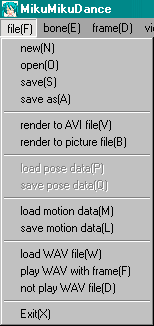
THE FILE MENU

NEW: Opens a new MikuMikuDance blank stage.

OPEN: Allows you to open a saved dance file.

SAVE: Allows you to save your dance file.

SAVE AS: Allows you to rename or relocate your dance file.

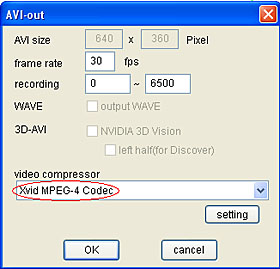
RENDER TO AVI FILE: Sends you to the Render Options screen. Allows you to save your animation as a video with a new name in any of a handful of video formats. If your animation is short or you plan to edit your video after you make it here, use the default “AVI RAW” video format. This saves your video with the most detail, the least compression, and the LARGEST file size! Microsoft Video1 works well … seems to make a good file size. If you have a favorite format, please let me know.

RENDER TO PICTURE FILE: Allows you to save the current stage image as a still picture.

LOAD POSE DATA: Allows you to load a pose file into the current frame.

SAVE POSE DATA: Allows you to create, name and save your own pose data file. A POSE takes place in only a single frame. Highlight the Diamonds that make up the pose within that frame, click COPY. Select FILE/SAVE POSE DATA, give your pose a name, and Save your new pose file.

LOAD MOTION DATA: Allows you to load a motion data file … with that data starting at your currently selected frame.

SAVE MOTION DATA: Allows you to create, name, and save a motion file. Motion files occupy a series of frames. Drag a box around the Diamonds involved in your motion, or Use Range-Select, or simply hold down the shift key and click to select the specific Diamonds that you wish to include in your motion. Then Click COPY to put those Diamonds into memory. Then select FILE/SAVE MOTION DATA, give your motion a name, and Save your new motion data file.

LOAD WAV FILE: Allows you to load a “wave” file … an audio file with a .wav extension. When loaded, the audio will play along with your animation and the MMD oscilloscope will show you the sound waves to help you time your model’s motion to the music.

PLAY WAV WITH FRAME: Check this option to let you hear the WAV file frame-by-frame as you animate your scene. Rapidly clicking through the frame counter lets you hear the WAV file as an aid to helping you time your model’s actions to the audio track.

NOT PLAY WAV FILE:  Check this option to turn off the audio playback.

EXIT: Closes the Miku Miku Dance program.

Please email me, Reggie Dentmore, if you have questions. I learn more as I research the answers to your questions.


– SEE BELOW for MORE MMD TUTORIALS…


— — —


– _ — –


Visit the LearnMMD.com Homepage! Plenty of Mikumikudance instruction and info!

More MMD Tutorials...

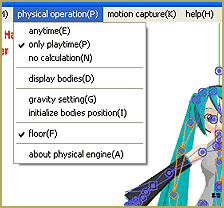
Physical Operations Tab in MikuMikuDance 7.39 Menu Options

What's the physical operation tab for in MMD 7.39? What is the difference between Anytime ...read more

Local and Global Mode Bone Movement MMD: Miku's Mode Swings

What do local and global mode mean in MMD? What’s the difference between local and ...read more

Using the Gravity Settings in MikuMikuDance

What are the gravity settings in MMD? How do you use the gravity settings in ...read more

Copy and Paste for Repetitive Motion in MikuMikuDance

How do I copy a motion? How do I make a smooth motion in MMD? ...read more

Use Center Position Bias to duplicate a motion

How can I paste a motion in a new place on the stage? How can ...read more

The MMD 7.39 BONE MENU Options

The MMD 7.39 BONE MENU Options This article is OBSOLETE. It was written in the era ...read more

MENU Option Descriptions, Nuts & Bolts Tags:keyboard shortcuts, mikumikudance

Post navigation

Previous Post: Smooth Walking Motion is getting easier!
Next Post: The MMD 7.39 BONE MENU Options

Related Posts

  • Haku and Fireworks 02
    Add Background Pictures and AVI’s to MikuMikudance MMD Add Background Pictures and AVI
  • Meiko showing her "Bones"
    Add Songs to MikuMikuDance: All you need is a WAV file! Music and WAV Files
  • ZERO-GRAVITY Day on the beach in MMD!. Use Gravity Settings and Noize to make winds blow.
    Using the Gravity Settings in MikuMikuDance ARIZONA
  • The MMD 7.39 BONE MENU Options MENU Option Descriptions
  • How to Switch Models and Stages in MikuMikuDance Accessory Manipulation/Adjust
  • Next Level in MMD Video Evolution
    Post-Production Editing Yields Next Step in MMD Video Quality Making Videos - Rendering to AVI

More Related Articles

YouTube serves video playback quality to best suit your viewing-screen HD Videos in MMD
Use Center Position Bias to duplicate a motion Functions-Copy-Paste-Expand
Everything is loaded and ready to "Play!" ... Happy Hands MMD Meme. Create an MMD Video using the “Happy Hands” Meme Making Videos - Rendering to AVI
Use MMD Memes to get Motion and WAV Files for MikuMikuDance! Downloading New Models
Move the whole Model with Box-Sel in MikuMikuDance Functions-Copy-Paste-Expand
Japanese Mode Opens Hidden Model Features in MMD 8.06 Japanese Mode

Leave a Reply Cancel reply

Your email address will not be published. Required fields are marked *

Download the latest version of MikuMikuDance!
See the MMD Step-by-Step instructions page!
Learn how to make your own MMD motions!
LearnMMD.com
  • Make Smooth Animation Using Interpolation Curves Making Smooth Motions
  • The MMD 7.39 VIEW MENU Options MENU Option Descriptions
  • MMD Animation Project Resource Ushimitsu Toki Animation Resource
  • Make WAV files for MikuMikuDance Using Your Music Files Music and WAV Files
  • LearnMMD's Video Dojo Expo Competition
    LearnMMD’s Video Dojo Expo 4: The Voting is Done!! Video Dojo Competition
  • Get started with MMM – The Basics Kazuki Matsuoka
  • Make MMD Background AVI using WAV and AviUtl
    Make MMD Background AVI Using AviUtl WMV Files "the making of" my video
  • Making a Long Video Animation in MMD 7.39 Can Be Done! CONTESTS

Copyright © 2022 Learn MikuMikuDance – MMD Tutorials – Free 3D Animation Software and Instructions..

Powered by PressBook Premium theme

Go to mobile version