


How can I change the screen size of my MMD video? How do I turn the shadows off in Miku Miku Dance? How do I change the color of my models on MMD? Can I adjust the FPS frames per second in MikuMikuDance? 
The VIEW MENU Options
This article is OBSOLETE. It was written in the era of MMD 7.39 and no longer applies to the newer versions of MikuMikuDance.
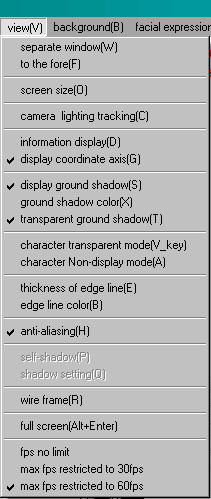 Separate Window moves the Stage screen into a separate window allowing you to have the Frame area in wide screen view. If you click the main window, the Stage window will disappear. To get it back, use the “To The Fore” command or unclick Separate Window.
To The Fore brings the separate Stage window to the front, on top of the main window. Use this command to show the stage when it is behind the main screen because of the “Separate Window” command.
Screen Size defines the actual dimension of your animation’s screen size in pixels. The default setting is 512 x 384 pixels. (You will note that those dimensions have relationship of 1.33 to 1 … the standard video screen / “Academy” movie screen proportion.)
You can enter any numbers you wish, and the Stage screen adjusts itself to the new proportions.
The Screen Size setting is used by MikuMikuDance as the actual dimensions of your video when you “Render To AVI File” … very important as you determine the actual size of your output video. Best is to leave the default setting in place unless you have a specific need to change it.
Camera Lighting Tracking has no function that I can determine. If you have info on it, please email me so that I can add that info here. Thanks!
 Information Display toggles screen display information On and Off.
Display Coordinate Axis toggles the coordinate grid On and Off.
Display Ground Shadow toggles the shadow On and Off.
Ground Shadow Color pops up an adjustment window that lets you choose the darkness of the shadows.
Transparent Ground Shadow toggles the opacity of the shadow: transparent or opaque.
Character Transparent Mode toggles an effect that lets you see through your character as you make adjustments.
Character Non-Display Mode has no function  that I can determine. If you have info on it, please email me so that I can add that info here. Thanks!
Thickness of Edge Line lets you adjust the thickness of the model’s outlines. This command effects every model in your animation. Try it out … experiment with different values to see if you can employ this adjustment in your animations.
Edge Line Color lets you set the color of the outlines for every model in your animation. Again, try it out … experiment with different colors to see if you can employ this adjustment in your animations. I find that using colored outlines adds an interesting, sometimes pleasing element.
Anti-Aliasing, toggles the anti-aliasing  function On and Off. Anti-Aliasing “On” uses some computer power to smooth the edges of the objects and models in your view. I suppose that, if your computer is already lagging as you run MMD, you could “uncheck” this function to gain a little more processing speed. Check it ON again for smooth edges when you “Render to AVI”.
Self-Shadow and Shadow Setting seem to have no function in this version of Miku Miku Dance. I have not seen these options highlighted to make them available to the user.
Wire Frame lets you see the raw wire-frame display of all of the elements on your stage.
Full Screen lets you view your animation … full screen! Toggle this function On and Off from the keyboard with the shortcut ALT-Enter.
FPS means Frames Per Second. These three options adjust the computer’s limitations on the frame speed for your video. I set mine for a 30 FPS maximum because that is the video speed that YouTube converts everything to.
As always, if you have more info or you want to  correct any of my findings, please contact me. I want these pages to be as accurate as possible.
Click aa1 MENU Option Descriptions in the Contents section to see all of my Menu Option write-ups.
Please email me, Reggie Dentmore, if you have questions. I learn more as I research the answers to your questions.
– SEE BELOW for MORE MMD TUTORIALS…
— — —
– _ — –