Skip to content
Learn MikuMikuDance – MMD Tutorials – Free 3D Animation Software

Learn MikuMikuDance – MMD Tutorials – Free 3D Animation Software

Download Free Animation Software – Let's Learn How to Do Everything!

  • Step-by-Step MMD instructions
  • DOWNLOADS
  • Troubleshoot, Fix MMD
  • Site Contents
  • Reggie Replies Q&A
  • Homework!
  • What IS MMD?
    • Download MikuMikuDance Newest Latest Version of MMD
  • “HOW TO”
    • Raycast RAY-MMD Effect Tutorials
  • BONUS PAGES
    • Why convert PMD models to PMX?
  • HALL of CHAMPIONS
  • Tutorial Categories
  • About
    • Privacy Policy
  • Toggle search form
  • How to make multi-part videos in MikuMikuDance Animation Shortcuts
  • Let your MMD model breathe and move while standing still! Creating Motions
  • Beamman’s MME SelfBurning Effect Sets your MMD models Ablaze! MME Effects Tutorials
  • Raycast Ray-MMD Toon Shader
    Ray-MMD Toon Shading Basics MMD Tutorials
  • Top-10 Best “motion-maker” MMDers on YouTube Intro to MikuMikuDance
  • Use Center Position Bias to Move Models in MMD ARIZONA
  • MME: Less is More… Select only those that you need. Cook Torrence effect
  • LearnMMD.com is back online after SIX days off!
    LearnMMD.com is BACK ONLINE, again! Reggie Dentmore

Adjust downloaded motions to fit your MMD models

Posted on February 4, 2019March 26, 2021 By UndeadLuciel 2 Comments on Adjust downloaded motions to fit your MMD models

A feature article by author UndeadLucielWhy is my model out of view when I load a camera motion? Is it OK to adjust downloaded motions? How can I adjust a motion to fit my model? Why do my model’s arms go through the body? 


If you’ve downloaded motions before, then you’re probably familiar with these problems:

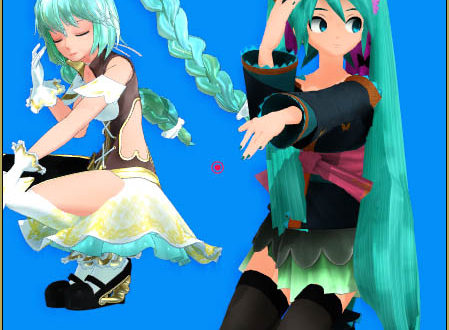
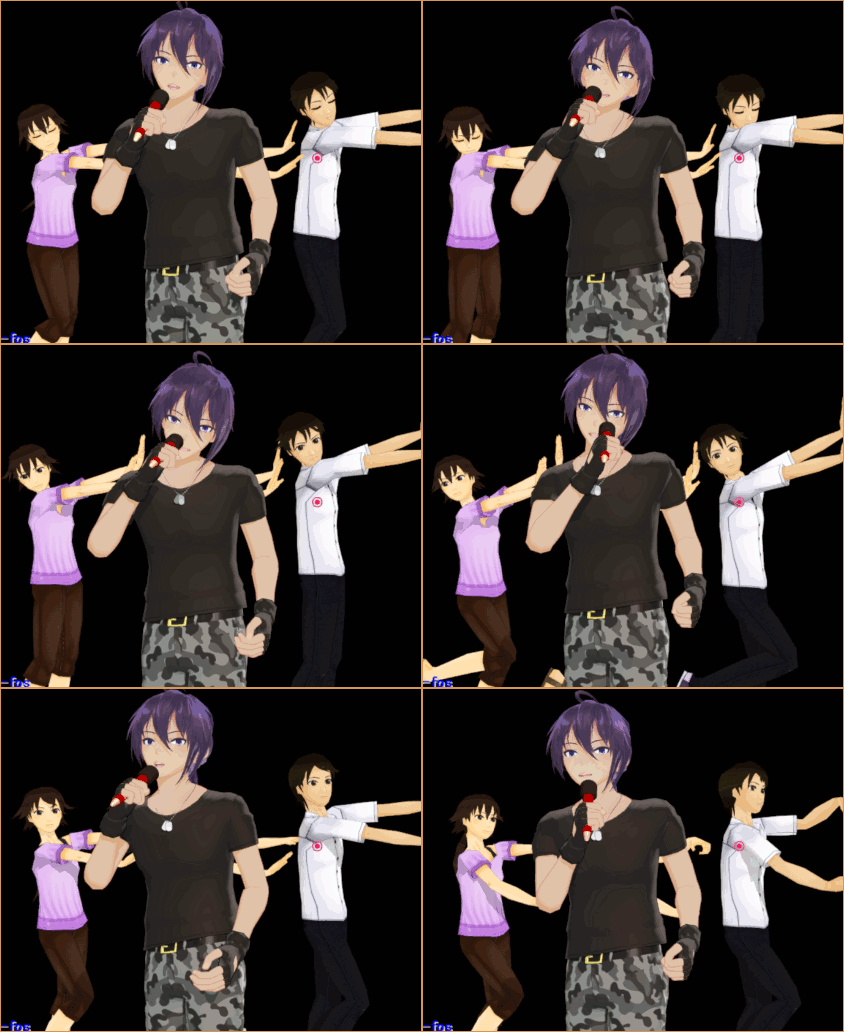
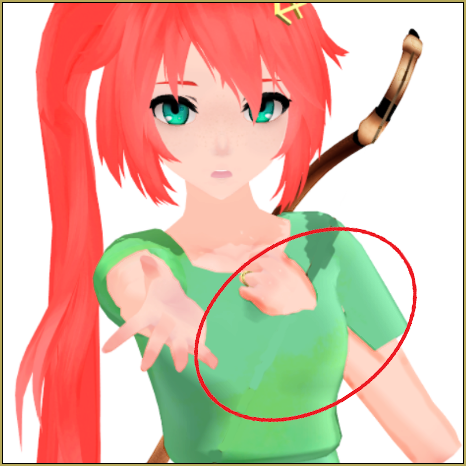
“Clipping” where hands or whole arms pass through the body.You need to adjust downloaded motions to fix the clipping errors you see when you push PLAY.
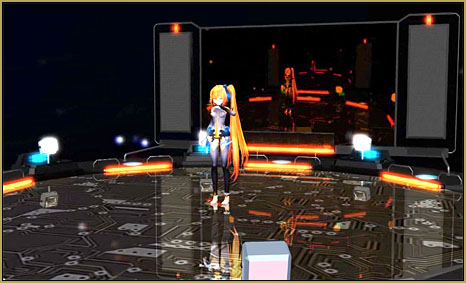
Camera motions designed for models taller or shorter than yours.This motion was made for a shorter model. You will need to adjust the camera position in each of its registered frames.
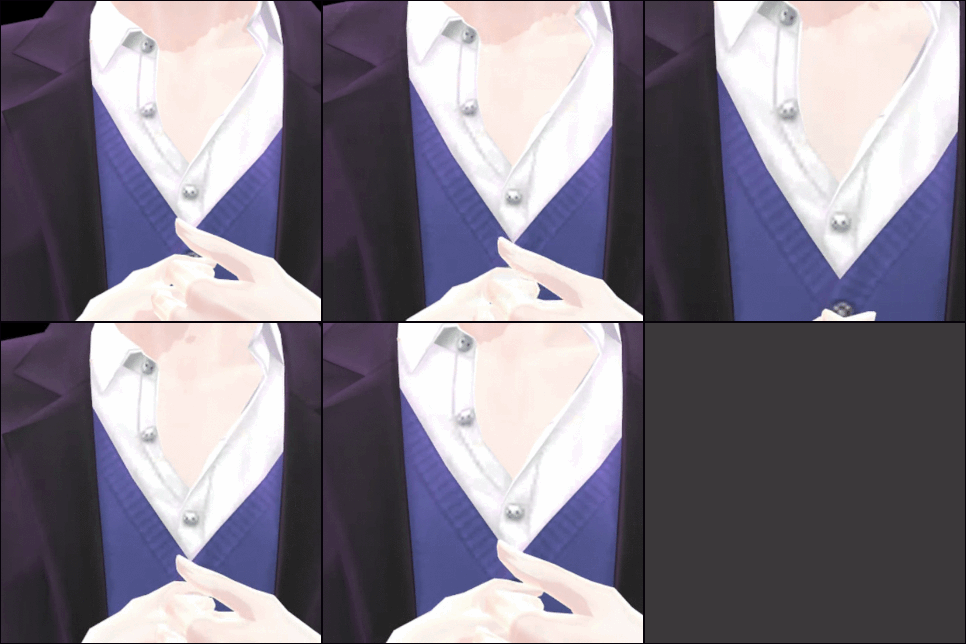
It’s really annoying to see these issues in videos. Not only does it just ruin the viewing experience, but it’s an easy fix if you’re willing to put a bit more effort into videos.

Is it OK to adjust downloaded motions? Many times a motion will say not to change it or not to use parts of it… but the creator wants you to be able to use the motion: that’s why he or she put it up for download… so it’s OK to make the tweaks necessary to fit your models and your stage. … just don’t redistribute that motion file and claim it as your own… always credit the original creator of that motion file.

Adjust downloaded motions to fit your MMD models

In this tutorial, I’m going to show you how to fix these minor issues, as well as a few tricks to make it easier/faster for you.

Fixing Model Motions…

Simple Clipping Issues

If your model’s limbs are clipping into the body in a way that shouldn’t be possible, as shown in the first picture, then the easiest way is to go through the entire motion, find the parts where the model clips, and simply move it out of the way.

The reason clipping happens is because each model has a slightly different skeletal structure. Take an Animasa Miku for example, and compare it to the model I used. You can see that the way the bones are placed is different in each model.
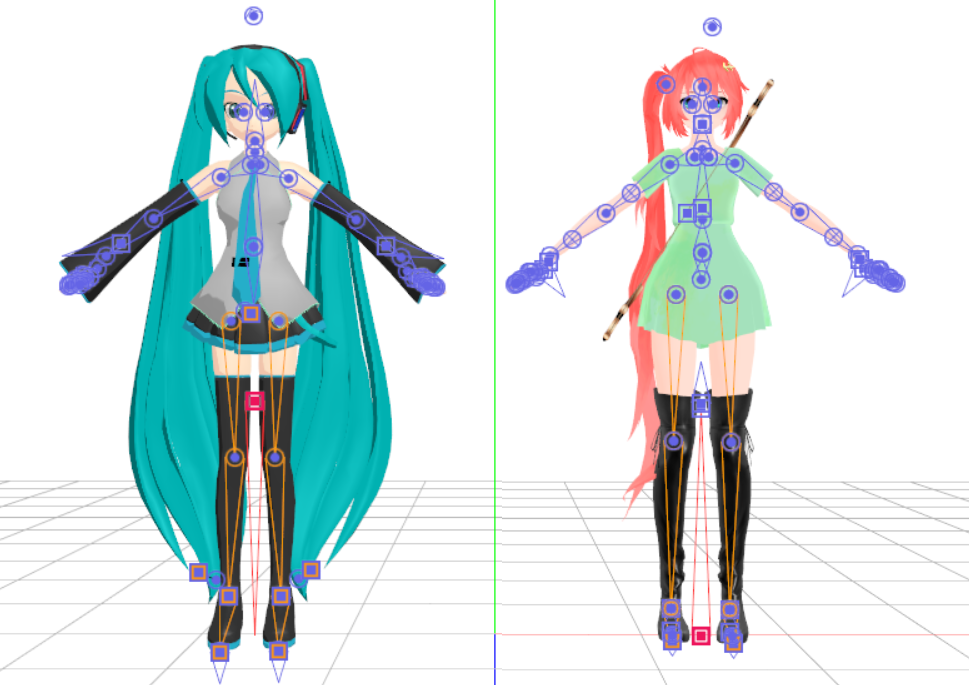
Each model is an individual... so each motion you download will need to be adjusted to fit your model.

Some models might also have different proportions. They might have longer arms, shorter body, or a larger bust.

MMD motions are calculated by the angle or distance the bone is set to move by the original creator. Since each model has different anatomies, clippings are expected to happen! A model’s arm might be too long compared to the original, and as a result, it may move too much.
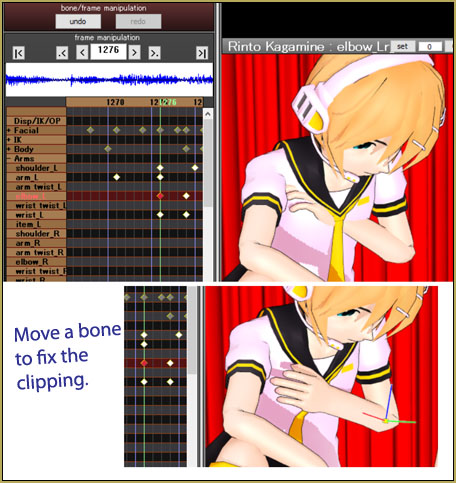
The arm was passing into Len's chest... I had to move the elbow to fix the pose.

In this image, I found the elbow keyframes where the hand goes through the model’s chest, adjusted it, and registered it on the keyframe.

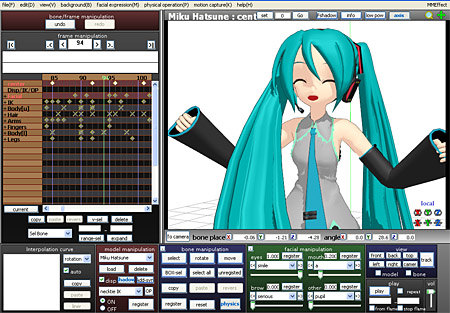
It is extremely important to register it ON A KEYFRAME. Otherwise, the arm will just pop right back into place, since the problem keyframe still registers to the same place. Use your keyboard’s Left-Right arrow buttons to move through the motion as a way to see that you have actually fixed the problem.

There is a way to speed up this progress, however. If you’re certain that the arms are the only problems with the motion, you can use these buttons:
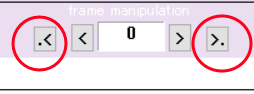
The little >. buttons let you jump to a selected bone's next registered diamond.

These are ‘next keyframe/previous keyframe’ buttons, they allow you to skip immediately to the next keyframe of the bone/bones highlighted in red.
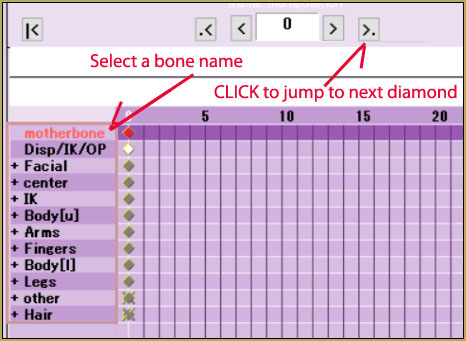
Select a bone name and then click that >. button to jump to the next registered frame.

Here, I have the motherbone highlighted. If I were to press the button the arrow is pointed at, MMD would immediately take me to the next frame where the motherbone is registered. You could also highlight a bone category, which are the ones with a + to the left of them. Pressing the arrow on those will take you to the next frame where a bone that belongs in the category is registered. For example, if I highlight ‘arms’, it would take me to the next frame where a shoulder, arm, elbow, or wrist is registered.
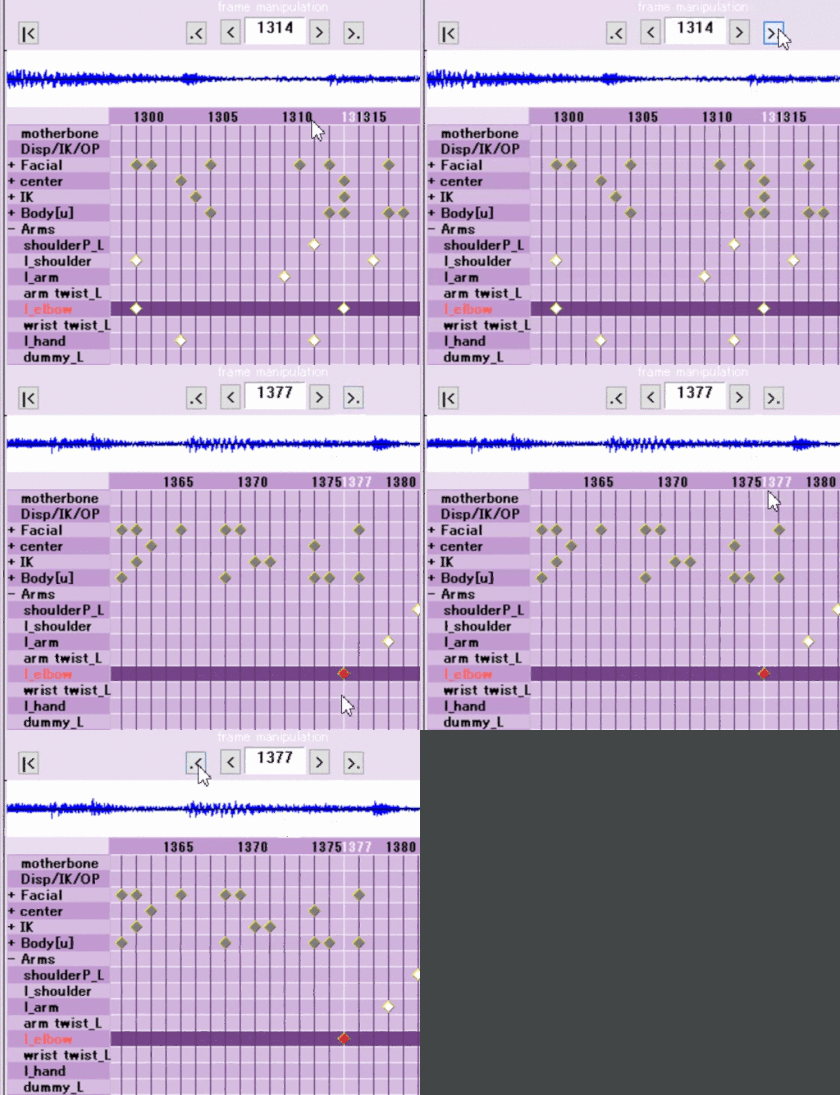
You can click on a bone name or a "bone group" name to jump to the next registered diamond.

Fixing Camera Motions

Model is Too Short or Too Tall

This is shown in the second image above, where the model is way too tall for the camera to capture. This error appears for the same reason as the model clipping issue: the camera bone needs adjustment. So, without further ado, let’s get right into fixing it.
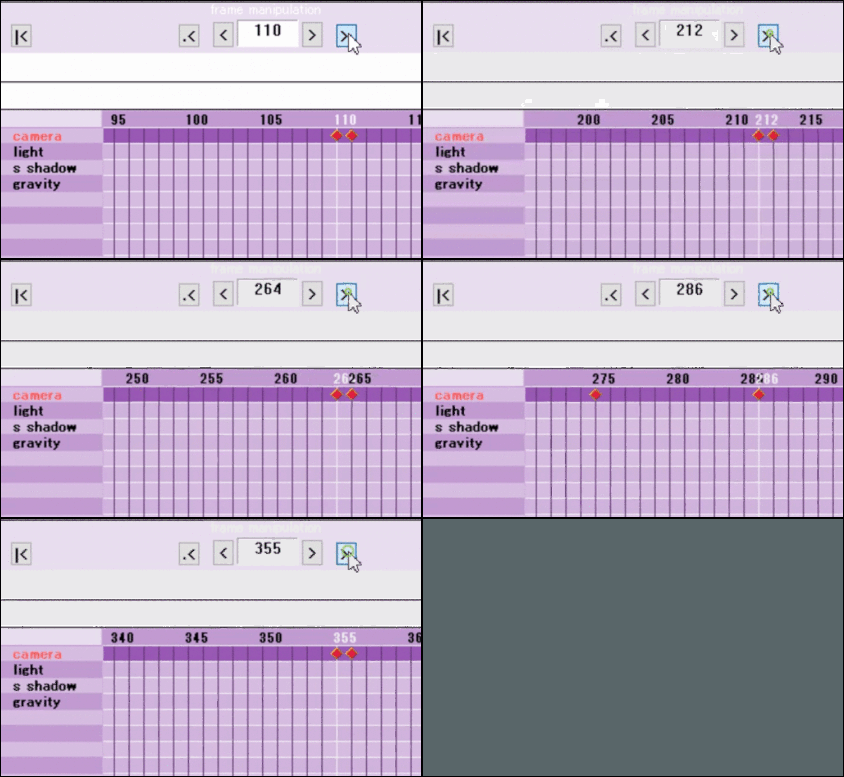
It is tedious to click from Camera diamond to Camera diamond and then adjust each one.

Now, of course you can go to every camera keyframe and move it a bit up or down, but you’re probably exhausted from fixing the model motion. There is a much simpler way to fix camera motions.

Go up to MMD’s taskbar, EDIT, then choose “multiply of camera frame position-angle(G)”, this little window should pop up:
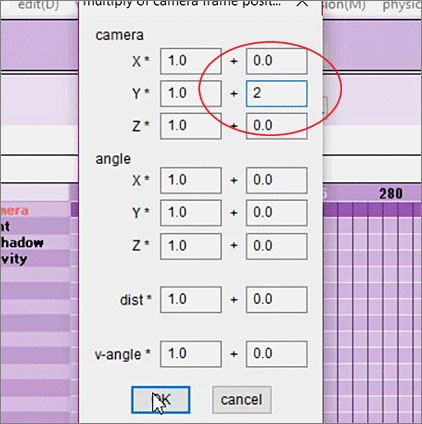
Use "multiply of camera frame position-angle(G)", under MMD's EDIT menu to adjust all of your selected camera diamonds at once.

This adjustment will move all of the selected camera frames up, down, left, right, forward, backward… even tilt it, according to the number you put in the second boxes. In the image, I changed the value in the second box of camera Y to 2, pressed OK, and you’ll see that all of the camera frames are moved up! You don’t have to painstakingly move every camera frame individually! You will probably need to Control-Z to UnDo and then retry things a few times to find exactly the right setting for your scene.

Adjust the motions until your animation looks great!

Remember, before rendering a video and uploading it, make sure you check the motion all the way through to make sure there aren’t any bugs! Move bones on certain keyframes to avoid clipping, and use “multiply of camera frame position-angle” to fix a camera motion quickly!

Have fun with MikuMikuDance!


– SEE BELOW for MORE MMD TUTORIALS…


— — —


– _ — –


Visit the LearnMMD.com Homepage! Plenty of Mikumikudance instruction and info!

More MMD Tutorials...

Reader asks how to create MMD artwork... stuff like posing, camerawork?

A reader asks... Is there a tutorial on how to create MMD artwork, like those you ...read more

Learn MikuMikuDance in Small Steps! New LearnMMD Video Series

Learn MikuMikuDance in Small Steps. Where can I find easy-to-follow MMD instructions on YouTube? How ...read more

Apply Multiple Effects on an Entire MMD Model Using M4Layer Effect

How can I apply multiple effects to an MMD model? Can I use more than ...read more

MMD Plugin Manager... I Found a Treasure!

What sorts of MMD Plugins are there? MMD Plugin Manager? MMD Plugins. Plugin MMD. More ...read more

2023: Hatsune Miku is 16 Years Old by design and in reality!

Finally, in 2023, Hatsune Miku is 16 years old! When did Miku make her first ...read more

SEARCH LearnMMD.com... it's Easy!

Search LearnMMD.com to find your answers! With the posting of this article, LearnMMD.com has 758 tutorials ...read more

Animation Shortcuts, MMD Tutorials, UndeadLuciel Tags:fixing motions, motions

Post navigation

Previous Post: Make Smooth Motions using Multiple Keyframes
Next Post: Download the Latest Version of MikuMikuDance: MMD 9.32

Related Posts

  • Beamman’s Water v5 Effect needs Editing before you can use it! Beamman's Water v5
  • Removing Double Vertices to Create Continuous UV Maps Mae Blythe
  • Learn MikuMikuDance in Small Steps: a new video series on YouTube by LearnMMD.com!
    Learn MikuMikuDance in Small Steps! New LearnMMD Video Series MMD Tutorials
  • MMD Batokin Island stage is MORE than a beach MMD Basics
  • Sexiest MMD Model Dance Motion you can Download "the making of" my video
  • Move the 3 .dll files from the MME Download folder into the main MMD Folder.
    Download MME v037 in English MMEffects for MMD MikuMikuDance MMD Tutorials

More Related Articles

PMXEditor Quickly Edits MMD Model using Downloaded Parts BigPerryman
Exporting VSQX to VSQ for MMD! Kazuki Matsuoka
Using the OP function in an animation MMD Tutorials
Rendering HD 60 FPS MMD video and YouTube Upload HD Videos in MMD
Free AVIUTL Video Editing software adds animated titles to MMD Videos! Animated Titles
Intersecting Physics Bodies Cause Glitchy MMD Models Mae Blythe

Comments (2) on “Adjust downloaded motions to fit your MMD models”

  1. adel says:
    February 8, 2020 at 12:01 am

    why l cand do I nit

    Reply
    1. Reggie_Dentmore says:
      February 8, 2020 at 7:15 am

      Check this article for help.

      Reply

Leave a Reply Cancel reply

Your email address will not be published. Required fields are marked *

Download the latest version of MikuMikuDance!
See the MMD Step-by-Step instructions page!
Learn how to make your own MMD motions!
LearnMMD.com
  • LearnMMD.com's Video Dojo Expo FIVE
    Beach-side Pool-side “Hot August Nights” – Video Dojo Expo FIVE CONTESTS
  • MMD Models with a Mother Bone are easy to move on your stage.
    MMD Mother Bones Allow Easy Dancer Model Movement From Stage Center ARIZONA
  • Codec Problems!
    Updating the Codecs for MikuMikuDance’s Latest Versions ARIZONA
  • Best Way to Run MMD on a Mac Kazumi
  • Pose MMD Models Naturally Using Reference Pictures Bones
  • Free Download MikuMikuDance MMD
    Download MikuMikuDance Easily make YouTube MMD Music Videos MMD Basics
  • Video Dojo Expo 2 Champion: Turquoise Narcotic Video Dojo Champions
  • ColorShift Effect Dances using VMDSpectrum Analyzer ColorShift 3D Effect

Copyright © 2022 Learn MikuMikuDance – MMD Tutorials – Free 3D Animation Software and Instructions..

Powered by PressBook Premium theme

Go to mobile version