Skip to content
Learn MikuMikuDance – MMD Tutorials – Free 3D Animation Software

Learn MikuMikuDance – MMD Tutorials – Free 3D Animation Software

Download Free Animation Software – Let's Learn How to Do Everything!

  • Step-by-Step MMD instructions
  • DOWNLOADS
  • Troubleshoot, Fix MMD
  • Site Contents
  • Reggie Replies Q&A
  • Homework!
  • What IS MMD?
    • Download MikuMikuDance Newest Latest Version of MMD
  • “HOW TO”
    • Raycast RAY-MMD Effect Tutorials
  • BONUS PAGES
    • Why convert PMD models to PMX?
  • HALL of CHAMPIONS
  • Tutorial Categories
  • About
    • Privacy Policy
  • Toggle search form
  • LearnMMD Stage Lit with AutoLuminous Lights MMD Tutorials
  • Introducing MikuMikuMoving … MMM! Kazuki Matsuoka
  • The 966_ Otogibanashi Toon effect recolors your models!
    966_ Otogibanashi Toon “Fairy Tale” shader effect recolors your models 966_ Otogibanashi Toon
  • MMD Smooth Criminal video project download "the making of" my video
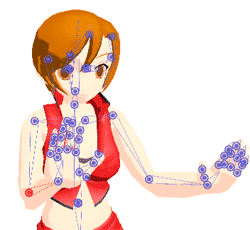
  • Meiko showing her "Bones"
    Add Songs to MikuMikuDance: All you need is a WAV file! Music and WAV Files
  • Print a hard copy! Art is fleeting… especially NOW! MMD Tutorials
  • MMD NyaReimu dances to Miku’s “The World is Mine” "the making of" my video
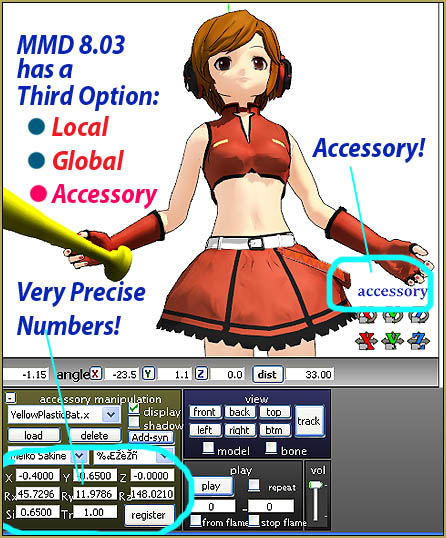
  • New MMD ACCESSORY MODE allows Easy Object Positioning Accessory Manipulation/Adjust

Adjust downloaded motions to fit your MMD models

Posted on February 4, 2019March 26, 2021 By UndeadLuciel 2 Comments on Adjust downloaded motions to fit your MMD models

A feature article by author UndeadLucielWhy is my model out of view when I load a camera motion? Is it OK to adjust downloaded motions? How can I adjust a motion to fit my model? Why do my model’s arms go through the body? 


If you’ve downloaded motions before, then you’re probably familiar with these problems:

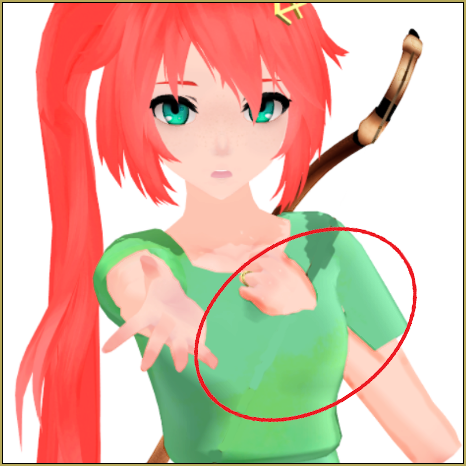
“Clipping” where hands or whole arms pass through the body.You need to adjust downloaded motions to fix the clipping errors you see when you push PLAY.
Camera motions designed for models taller or shorter than yours.This motion was made for a shorter model. You will need to adjust the camera position in each of its registered frames.
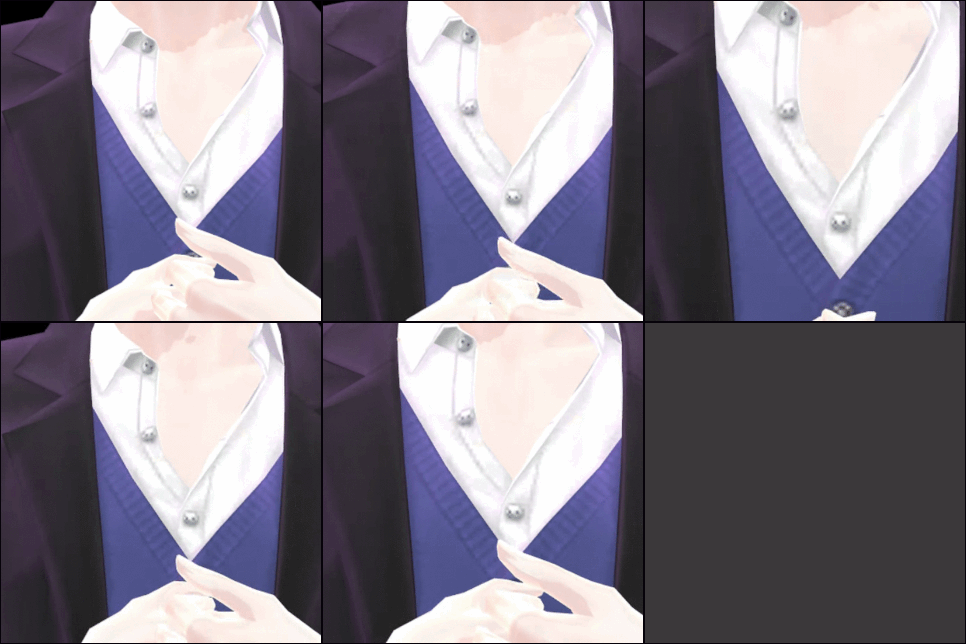
It’s really annoying to see these issues in videos. Not only does it just ruin the viewing experience, but it’s an easy fix if you’re willing to put a bit more effort into videos.

Is it OK to adjust downloaded motions? Many times a motion will say not to change it or not to use parts of it… but the creator wants you to be able to use the motion: that’s why he or she put it up for download… so it’s OK to make the tweaks necessary to fit your models and your stage. … just don’t redistribute that motion file and claim it as your own… always credit the original creator of that motion file.

Adjust downloaded motions to fit your MMD models

In this tutorial, I’m going to show you how to fix these minor issues, as well as a few tricks to make it easier/faster for you.

Fixing Model Motions…

Simple Clipping Issues

If your model’s limbs are clipping into the body in a way that shouldn’t be possible, as shown in the first picture, then the easiest way is to go through the entire motion, find the parts where the model clips, and simply move it out of the way.

The reason clipping happens is because each model has a slightly different skeletal structure. Take an Animasa Miku for example, and compare it to the model I used. You can see that the way the bones are placed is different in each model.
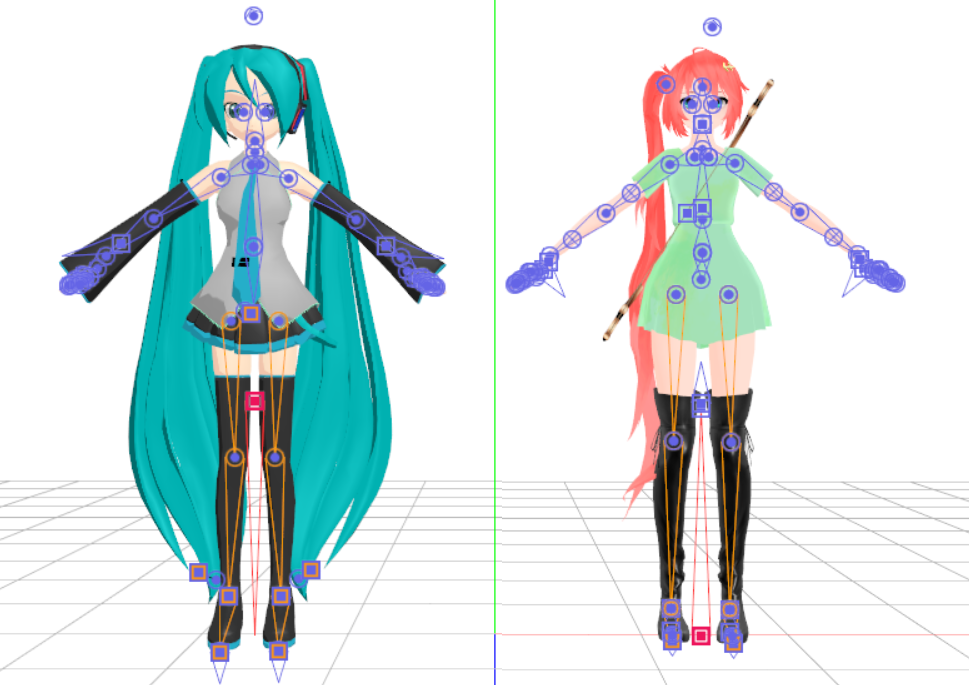
Each model is an individual... so each motion you download will need to be adjusted to fit your model.

Some models might also have different proportions. They might have longer arms, shorter body, or a larger bust.

MMD motions are calculated by the angle or distance the bone is set to move by the original creator. Since each model has different anatomies, clippings are expected to happen! A model’s arm might be too long compared to the original, and as a result, it may move too much.
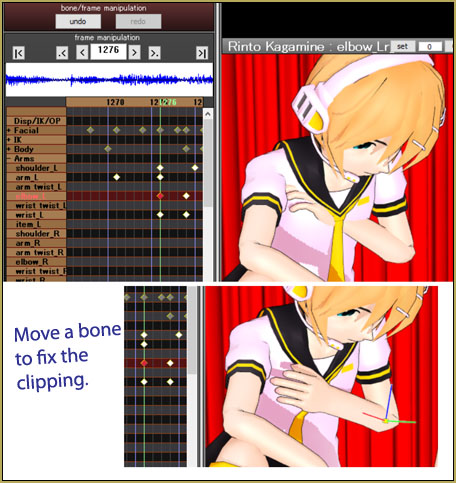
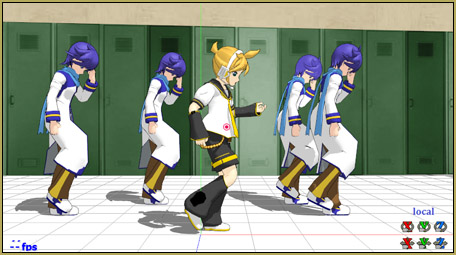
The arm was passing into Len's chest... I had to move the elbow to fix the pose.

In this image, I found the elbow keyframes where the hand goes through the model’s chest, adjusted it, and registered it on the keyframe.

It is extremely important to register it ON A KEYFRAME. Otherwise, the arm will just pop right back into place, since the problem keyframe still registers to the same place. Use your keyboard’s Left-Right arrow buttons to move through the motion as a way to see that you have actually fixed the problem.

There is a way to speed up this progress, however. If you’re certain that the arms are the only problems with the motion, you can use these buttons:
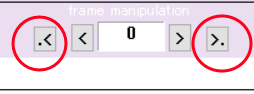
The little >. buttons let you jump to a selected bone's next registered diamond.

These are ‘next keyframe/previous keyframe’ buttons, they allow you to skip immediately to the next keyframe of the bone/bones highlighted in red.
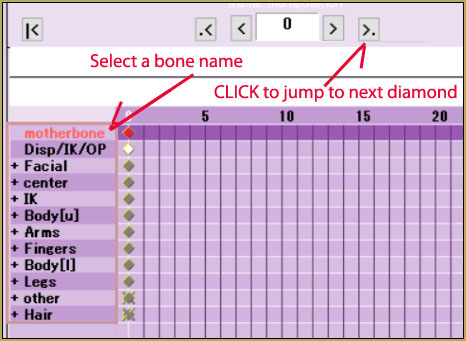
Select a bone name and then click that >. button to jump to the next registered frame.

Here, I have the motherbone highlighted. If I were to press the button the arrow is pointed at, MMD would immediately take me to the next frame where the motherbone is registered. You could also highlight a bone category, which are the ones with a + to the left of them. Pressing the arrow on those will take you to the next frame where a bone that belongs in the category is registered. For example, if I highlight ‘arms’, it would take me to the next frame where a shoulder, arm, elbow, or wrist is registered.
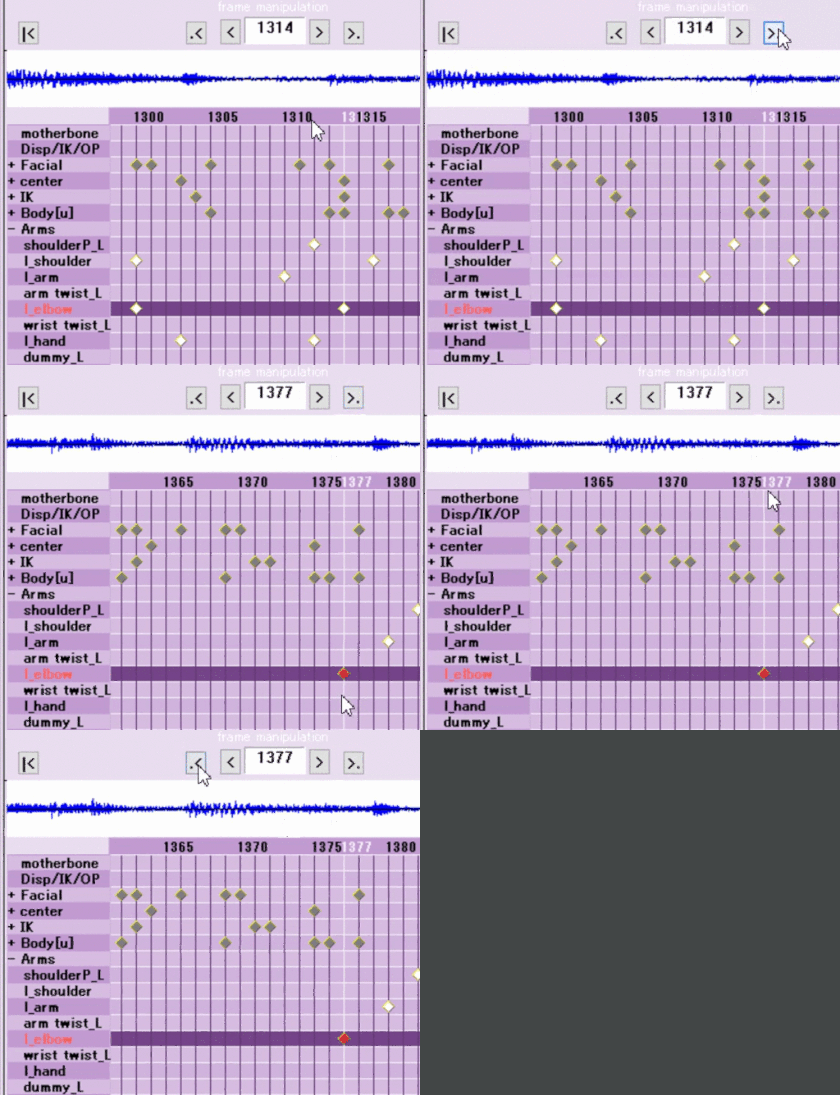
You can click on a bone name or a "bone group" name to jump to the next registered diamond.

Fixing Camera Motions

Model is Too Short or Too Tall

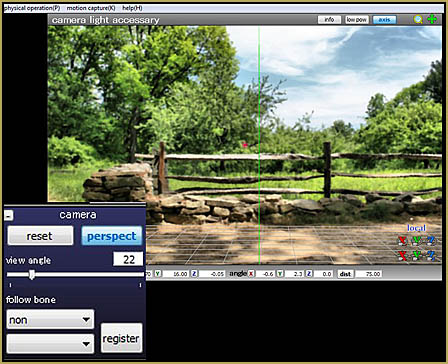
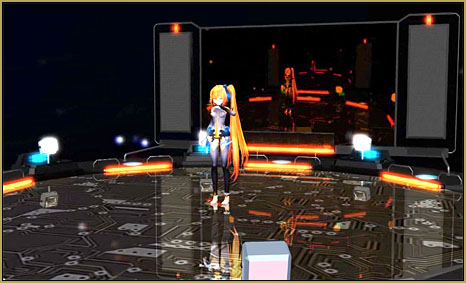
This is shown in the second image above, where the model is way too tall for the camera to capture. This error appears for the same reason as the model clipping issue: the camera bone needs adjustment. So, without further ado, let’s get right into fixing it.
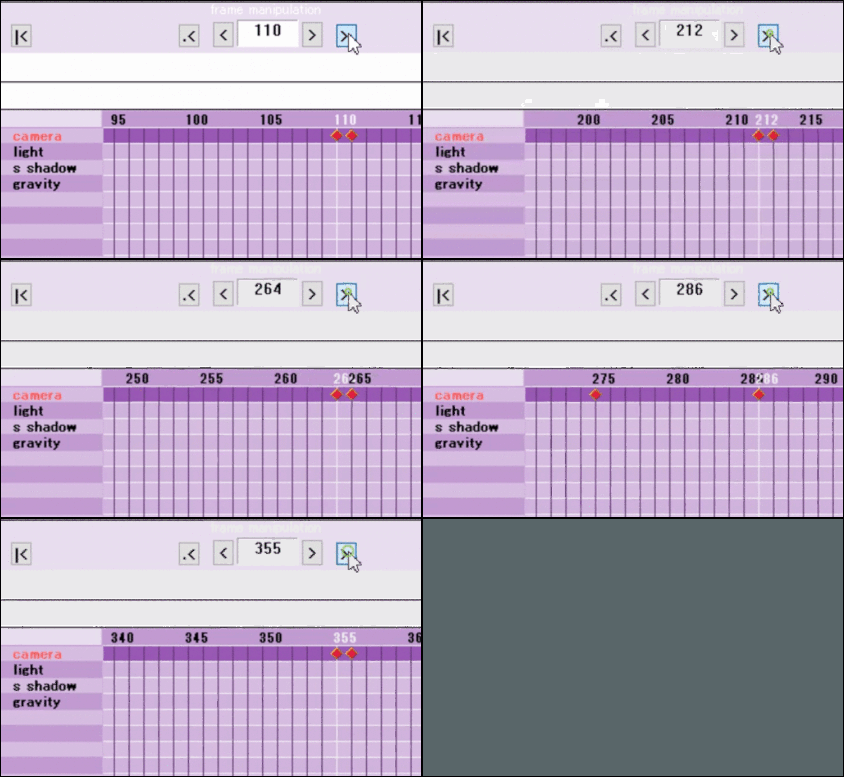
It is tedious to click from Camera diamond to Camera diamond and then adjust each one.

Now, of course you can go to every camera keyframe and move it a bit up or down, but you’re probably exhausted from fixing the model motion. There is a much simpler way to fix camera motions.

Go up to MMD’s taskbar, EDIT, then choose “multiply of camera frame position-angle(G)”, this little window should pop up:
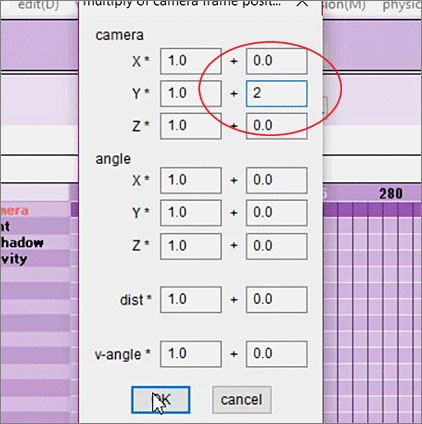
Use "multiply of camera frame position-angle(G)", under MMD's EDIT menu to adjust all of your selected camera diamonds at once.

This adjustment will move all of the selected camera frames up, down, left, right, forward, backward… even tilt it, according to the number you put in the second boxes. In the image, I changed the value in the second box of camera Y to 2, pressed OK, and you’ll see that all of the camera frames are moved up! You don’t have to painstakingly move every camera frame individually! You will probably need to Control-Z to UnDo and then retry things a few times to find exactly the right setting for your scene.

Adjust the motions until your animation looks great!

Remember, before rendering a video and uploading it, make sure you check the motion all the way through to make sure there aren’t any bugs! Move bones on certain keyframes to avoid clipping, and use “multiply of camera frame position-angle” to fix a camera motion quickly!

Have fun with MikuMikuDance!


– SEE BELOW for MORE MMD TUTORIALS…


— — —


– _ — –


Visit the LearnMMD.com Homepage! Plenty of Mikumikudance instruction and info!

More MMD Tutorials...

Enjoy the "camera Angles WEIRD in Anime" meme...

Enjoy the "camera Angles WEIRD in Anime" meme... This image is from The Slayers - NEXT, ...read more

Reader asks how to create MMD artwork... stuff like posing, camerawork?

A reader asks... Is there a tutorial on how to create MMD artwork, like those you ...read more

Learn MikuMikuDance in Small Steps! New LearnMMD Video Series

Learn MikuMikuDance in Small Steps. Where can I find easy-to-follow MMD instructions on YouTube? How ...read more

Apply Multiple Effects on an Entire MMD Model Using M4Layer Effect

How can I apply multiple effects to an MMD model? Can I use more than ...read more

MMD Plugin Manager... I Found a Treasure!

What sorts of MMD Plugins are there? MMD Plugin Manager? MMD Plugins. Plugin MMD. More ...read more

2025: Hatsune Miku is 18... but she is designed to be always 16 Years old, by design and in reality!

Finally, in 2023, Hatsune Miku is 16 years old! but in August of 2025, she ...read more

Animation Shortcuts, MMD Tutorials, UndeadLuciel Tags:fixing motions, motions

Post navigation

Previous Post: Make Smooth Motions using Multiple Keyframes
Next Post: Download the Latest Version of MikuMikuDance: MMD 9.32

Related Posts

  • Miku Short Film Featured
    Anime Shorts – Five minutes worth of animation, maybe three! Animation Shortcuts
  • Try Reggie’s Evil Eye Effect for an Anime-style effect MMD Tutorials
  • Posing MMD Models Using Reference Images Animation Shortcuts
  • Using the OP function in an animation MMD Tutorials
  • Making JRPG style scenes using MMD MMD Comics
  • Installing old DirectX 9c solves many MMD Missing DLL Errors Dealing with the Missing DLL Error

More Related Articles

Export Import MMD Models Using Blender and PMXE Blender
MMD Camera Work makes motions fit the song. MMD Camera Work made the motion fit the song! "the making of" my video
MME Lighting Effect, PanelLight by Soboro, is easy to use! Add MME Lighting Effect illuminates model against dark stages MMD Tutorials
Using the right codec when Rendering to AVI in MMD HD Videos in MMD
IrfanView captures single-frame images from Video AVI files! Irfanview Media Viewer
Use 2D Background Images in MikuMikuDance Add Background Pictures and AVI

Comments (2) on “Adjust downloaded motions to fit your MMD models”

  1. adel says:
    February 8, 2020 at 12:01 am

    why l cand do I nit

    Reply
    1. Reggie_Dentmore says:
      February 8, 2020 at 7:15 am

      Check this article for help.

      Reply

Leave a Reply Cancel reply

Your email address will not be published. Required fields are marked *

Download the latest version of MikuMikuDance!
See the MMD Step-by-Step instructions page!
Learn how to make your own MMD motions!
LearnMMD.com
  • Enjoy the “camera Angles WEIRD in Anime” meme… Animation Shortcuts
  • Use PMDE to make a Model for MMD almost from Scratch MMD Tutorials
  • Beamman's WEater Effect can be very realistic.
    BeamMan’s Water Effects really look wet! Beamman's Water v5
  • NCHLShader2 adds realistic depth to MMD models Advanced Shader Technique
  • Creating a new model using Piron's base and a great new T-shirt! MMD 7.39 PMDE
    Adding Parts in PMDEditor is Easier than you think! MMD 7.39 NOKO2
  • ikUnderwater Effect submerges your MMD animation! ikUnderwater Effect
  • Beamman’s Water v5 Effect needs Editing before you can use it! Beamman's Water v5
  • LearnMMD Stage Lit with AutoLuminous Lights MMD Tutorials

Copyright © 2022 Learn MikuMikuDance – MMD Tutorials – Free 3D Animation Software and Instructions..

Powered by PressBook Premium theme

Go to mobile version