
Skip to content
Learn MikuMikuDance – MMD Tutorials – Free 3D Animation Software

Learn MikuMikuDance – MMD Tutorials – Free 3D Animation Software

Download Free Animation Software – Let's Learn How to Do Everything!

  • Step-by-Step MMD instructions
  • DOWNLOADS
  • Troubleshoot, Fix MMD
  • Site Contents
  • Reggie Replies Q&A
  • Homework!
  • What IS MMD?
    • Download MikuMikuDance Newest Latest Version of MMD
  • “HOW TO”
    • Raycast RAY-MMD Effect Tutorials
  • BONUS PAGES
    • Why convert PMD models to PMX?
  • HALL of CHAMPIONS
  • Tutorial Categories
  • About
    • Privacy Policy
  • Toggle search form
  • Free Download MikuMikuDance MMD
    Reader writes: i don’t know how to do mmd :( MMD Tutorials
  • Luka with Body Pane with Vignette
    Hair Falling through the Body in MMD Models and How to Fix It Fixing Broken Models
  • VDE-4 Champion: YamiMori Video Dojo Champions
  • Make Wattpad covers using MikuMikuDance and Canva.com! Faris
  • Animation Styles: Park and Bark vs. Choreography Creating Motions
  • VDE-4 Champion: Reona Video Dojo Champions
  • Different Eye Textures in one model using PMXE JuneTarzan
  • Kaito and the SpotLight Effect.
    Using the SpotLight Effect in MikuMikuEffects ARIZONA

How to fix a model with missing textures

Posted on April 29, 2015January 23, 2020 By xxbodger 33 Comments on How to fix a model with missing textures

Feature articles by LearnMMD's xxbodger!How do I fix a model with missing textures? Why does my new model have white places? How do I fix my broken model? How can I rename my texture files?

Missing textures on your new models can happen when your “unzip” program cannot handle Japanese text; it replaces those characters with gibberish. Then, when you try to load this model in MMD, MMD can’t find the texture. So it loads the model without that texture.

How to fix a model with missing textures
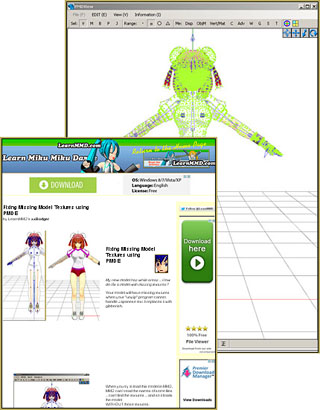
You can fix models that have missing textures due to scrambled file names. See my page for full instructions!You CAN get those textures back by using PMDE to determine the correct name of those gibberish file names … and then correcting the names on those files.

See my page: “Fixing Model Textures” to learn how to do it!

afiller


– SEE BELOW for MORE MMD TUTORIALS…


— — —


– _ — –


Visit the LearnMMD.com Homepage! Plenty of Mikumikudance instruction and info!

More MMD Tutorials...

Enjoy the "camera Angles WEIRD in Anime" meme...

Enjoy the "camera Angles WEIRD in Anime" meme... This image is from The Slayers - NEXT, ...read more

Reader asks how to create MMD artwork... stuff like posing, camerawork?

A reader asks... Is there a tutorial on how to create MMD artwork, like those you ...read more

Learn MikuMikuDance in Small Steps! New LearnMMD Video Series

Learn MikuMikuDance in Small Steps. Where can I find easy-to-follow MMD instructions on YouTube? How ...read more

Apply Multiple Effects on an Entire MMD Model Using M4Layer Effect

How can I apply multiple effects to an MMD model? Can I use more than ...read more

MMD Plugin Manager... I Found a Treasure!

What sorts of MMD Plugins are there? MMD Plugin Manager? MMD Plugins. Plugin MMD. More ...read more

2025: Hatsune Miku is 18... but she is designed to be always 16 Years. Old by design and in reality!

Finally, in 2023, Hatsune Miku is 16 years old! but in August of 2025, she ...read more

Fixing Broken Models, MMD Tutorials, PMDE/PMXE tutorials, xxbodger

Post navigation

Previous Post: Exporting VSQX to VSQ for MMD!
Next Post: THIS IS TARGET Meme by Zazi on LearnMMD.com

Related Posts

  • Set MMD Widescreen Screen Size balance Size VS Quality MMD Basics
  • LearnMMD.com _ MikuMikuDance MMD Tutorials
    Learn MMD Basics before jumping into a big project! MMD Basics
  • How To Add Depth and Emotion in an MMD Picture Advanced Shader Technique
  • Behind the Scenes insights into my newest video "the making of" my video
  • How To Make MMD Pictures and Videos Like a Pro Advanced Shader Technique
  • THIS IS TARGET Meme by Zazi on LearnMMD.com MMD Memes

More Related Articles

Understanding PMXE Materials: Ambient, Diffuse, Specular, Reflect and More! Bandages
Animation Fade helps MMD scene transitions Animation Shortcuts
My VDE-3 Entry has Music, Camera, Dancers… Now for the HARD part. "the making of" my video
Locomotion – MMD Trains: how to setup and move a train MMD Tutorials
Modifying model texture color compensates Raycast color desaturation MMD Tutorials
The Easiest Way To Add Hair Physics in PMX Editor! BigPerryman

Comments (33) on “How to fix a model with missing textures”

Comments navigation

Newer comments
  1. Mark says:
    December 9, 2020 at 2:38 am

    To everyone that’s having issues with the textures coming up as white in MMD despite in the editor them being fine, here’s what worked for me:

    1st: Ensure that all your textures are in the same folder as your model.
    2nd: In PMDE, in the editor menu (Where you select the Material tab) at the bottom where you see “Tex:” Make sure that the file path is NOT absolute, this means the file path is something like: C:\Bob\Whatever\Folder\Folder2\Folder3\YOURTEXTURE.png

    You DON’T want that, for some reason for me, MMD doesn’t like that. You want it to be relative FROM the model, so if you have it in the same folder as I said you should, all you need in the textfield is YOURTEXTURE.png, WITHOUT the long file path to get to it.

    Save it and open it in MMD, it should work now. Hope this helps some people that see this comment in the future. Hi from 2020!

    Reply
    1. Sheva says:
      February 19, 2021 at 1:58 am

      Hi there. My problem is everytime I wanted to make models the import one was always the one turning white the first one was fine. How do you fix that ?

      Reply
      1. KillerBeer says:
        February 19, 2021 at 11:37 am

        I suppose you mean that you try to add parts to a model already open. In that case, you need textures from the part being added to be placed into the same folder.

        Reply
  2. Coffee says:
    September 6, 2020 at 6:52 am

    Hi, so I’m having this problem.
    So when I go into PMX editor, all my textures show up (mind you, I had to rename all the texture files. Which I was fixing the model anyways as I had converted it from VRM to PMX and the bones were all messed up)
    But when I go into MMD, the model turns white despite everything being fixed in the editor.

    Reply
    1. Reggie_Dentmore says:
      September 6, 2020 at 5:10 pm

      Often the issue is that MMD needs to have all of the textures inside the model’s folder. MMD does not know where else to look for anything.

      Reply
    2. Mark says:
      December 9, 2020 at 2:40 am

      Yo, my reply is a couple months late, but on the off-chance you didn’t get it to work I left a bit of a thorough comment above that may hopefully help you. :)

      Reply
  3. Alana says:
    February 10, 2020 at 3:09 pm

    I tried renaming the files, but it still does not work. I made sure that they were the correct files and renamed them accordingly. Then I updated each time I renamed it. Why is the material still blank?

    Reply
    1. KillerBeer says:
      February 11, 2020 at 12:53 am

      Are all those textures in the same folder with the model file itself?

      Reply
  4. Apricot says:
    February 10, 2020 at 2:49 pm

    Hello! I have read the tutorial but I got stuck on one part. On the step where the green dots should disappear when I click “Vert/Mat”, the green dots stay there. Why are the dots still there?

    Reply
    1. Apricot says:
      February 10, 2020 at 2:52 pm

      Never mind. I figured it out

      Reply
    2. Marshy says:
      February 10, 2020 at 2:53 pm

      I figured it out, nevermind

      Reply
  5. KillerBeer says:
    January 22, 2020 at 11:49 pm

    Reggie, the “See my page” link leads to an address that does not open and is possibly broken (a whitespace in the middle?). I haven’t found the correct page among WordPress-generated ones, it must be somewhere else.

    Reply
    1. Reggie_Dentmore says:
      January 23, 2020 at 3:49 pm

      Fixed it… spent an hour of “Chat” with GoDaddy… ended up changing the folder’s name and issuing a Redirect… so the old link, as is, sends the reader to the folder with the new name. It’s working. … THANKS for the alert!

      Reply
  6. Edward says:
    January 15, 2020 at 12:21 am

    what thing mate in the twitter that you said you forgot to tell me
    and i cleaned the model already but the fact is that the texture is gone when i loaded in mmd

    Reply
  7. TheArchangel254 says:
    October 27, 2018 at 12:23 am

    I’m tying to upload a model to deviantart, but every time I put it in a zip file and test it, all the textures don’t appear on the model. I’ve been having to hold out on uploading this model for like 2 months.

    Reply
    1. KillerBeer says:
      October 27, 2018 at 1:09 am

      Are all textures in the same folder with the model?

      Reply
  8. CerealKiller says:
    October 28, 2017 at 2:21 pm

    Please help
    The parts that are suppose to be white turned black and gold after adding accessory from another outfit and i can’t fix them
    Adding another colors doesn’t help,i checked that the textures are in right folder,i renamed and reloaded them multiple times and i did everything i could yet they stay black and gold

    Reply
    1. bandages says:
      October 29, 2017 at 6:08 am

      1) Figure out what materials are the ones that no longer look right. Try masking by materials to figure it out.

      2) Check the textures used by these materials. Are any of the textures black and gold? If so, this is probably where the problem is. Check what textures are used by the original– are they the same?

      3) Check material settings for these materials, compare to before the import. Are the material settings different at all?

      Reply
  9. Ryu says:
    January 15, 2017 at 7:39 pm

    Hello! The model that I am using doesnt not have many textures yet when when i did renamed them nothing happened? I followed the method well too, i am using pmx thought doesnt that make anything different? I am just very confused and need help

    Reply
    1. Ryu says:
      January 15, 2017 at 8:08 pm

      Oh nvm! i figured it out haha

      Reply
  10. Tia Lyles says:
    July 23, 2016 at 11:11 am

    It still dosen’t work. Can someone help me.

    Reply
    1. bandages says:
      July 23, 2016 at 7:04 pm

      If you find someplace to upload your model, I can take a look.

      Reply
  11. MMDXFNAF says:
    April 23, 2016 at 8:16 pm

    Um i downloaded enough today.. is there another way :O

    Reply
  12. Atheres says:
    April 21, 2016 at 2:51 pm

    So I’ve fixed what textures I’m using in PMXE, and it shows up perfectly fine there. When I load my model edit (I literally only put blood splatters on the body texture, I didn’t add or edit anything else on the model) into MMD, however, he shows up blank -_- I’ve been looking around but seeing no fix for that specific issue…any advice?

    Reply
    1. KillerBeer says:
      April 21, 2016 at 10:08 pm

      Did you replace the old texture file with the new one without editing the model, or did you create a new file and changed the respective material in PMDE to point at it?

      Reply
  13. Ludgah says:
    September 30, 2015 at 7:08 pm

    ……uhmm….is there a quicker method besides renaming all the textures? This thing I’m using has 50 GODDAMN TEXTURES I AIN’T RENAMING EVERY SINGLE ONE OF THEM.

    Reply
    1. KillerBeer says:
      October 1, 2015 at 11:50 am

      There’s a *somewhat* quicker method to rename all the textures. Switch to PMXE mode using “Information”->”PMD to edit switching” menu command (or simply open the model in PMXE), go to Materials tab, select *all* materials in the list (PMDE mode doesn’t allow that) and press Ctrl-C. Paste it into a text editor (the one that won’t screw Japanese text, that is; I use Notepad++, it’s free) and rename all textures *there*. Then simply Ctrl-C/Ctrl-V it back into PMXE. You may also try to use the same material to prepare a .bat file – a sequence of lines like “REN $@#^$#*.jpg newname.jpg” that you can execute to rename everything at once.

      Reply
  14. bodgerxx says:
    April 30, 2015 at 4:10 pm

    I have never been able to get applocale to work. I have tried and tried to no avail. I still get those gibberish file names

    Reply
  15. Dat Lynn says:
    April 30, 2015 at 4:53 am

    Or you can always use Applocale with your unzip program. There’s an article about it somewhere in this site IIRC

    Reply

Comments navigation

Newer comments

Leave a Reply Cancel reply

Your email address will not be published. Required fields are marked *

Download the latest version of MikuMikuDance!
See the MMD Step-by-Step instructions page!
Learn how to make your own MMD motions!
LearnMMD.com
  • The VDE-5 Champions are chosen!
    The CHAMPIONS of Video Dojo Expo FIVE Video Dojo Competition
  • Change the Edge Line Color and Shadowing of your Models KibaSan
  • PMXE Plugin adds Arm IK bone
    PMXE Plugin adds Arm IK bones allowing automatic MMD model interaction Animation Shortcuts
  • Make Custom MMD Models using Downloaded Parts BigPerryman
  • The story of Portal Turret "Bang Bang" video
    The making of: “Bang Bang” Portal video "the making of" my video
  • modified MMD effects can yield NEW surprises!
    Modified MME Effects Files yield NEW Effects for MMD! Customize MME effects
  • Render your MMD Video in 1080p HD Using Windows Live Movie Maker HD Videos in MMD
  • Download the latest version of MikuMikuDance - MMD 9.32
    Download the latest version of MikuMikuDance! Download MikuMikuDance

Copyright © 2022 Learn MikuMikuDance – MMD Tutorials – Free 3D Animation Software and Instructions..

Powered by PressBook Premium theme

Go to mobile version