

 How do I make my Vocaloid model talk instead of sing? Where can I get a speech synthesizer to read my script? How can I give a voice to my MMD model?
Vocaloid software is basically a speech synthesis application. But it is designed specifically for singing rather than for speaking… and on top of that, since almost all Vocaloid software is made in Japan to sing in Japanese, it is not readily applicable for use in English speech applications!
By speech here, I mean “talking”…
 Making your
Vocaloid talk…
Speech Synthesizer gives MMD Models a voice!
 Making your
So why would you want your Vocaloid to be able to talk? Well, there’s tons of things you can do with them if you can make them talk. For example they can tell jokes or act in drama animations. There’s tons of these types of animations on YouTube but they all tend to use speech clips from TV programs or movies… which is fine if you just want to make a parody, as many people do.
But what if you want “original” speech; to make them say exactly what you want?
There are two methods:
- Have someone do the voice acting for you. This is probably the best method but the problem is finding someone that you can trust to do a proper job; and this can be really hard. Apart from anything else, the voice actor needs to be able to “act”. Also, the logistics of using this method can be difficult to organize.
- Use a speech synthesizer; and that’s what we will discuss in this article as it is relatively easy and cheap to do.
So what will you need to do a talking animation?
- MMD
- Audacity
- A script
- A speech synthesizer
- Some method to record the speech
Creating the motion and lip sync for a speech animation uses exactly the same software as other MMD animation projects and these are covered in articles elsewhere. To sum up you need MMD to make the main animation and MOGG Face and Lips for making the lip sync (or you can do this manually in MMD also).
Write your script to be
“read aloud” by the speech synthesizer…
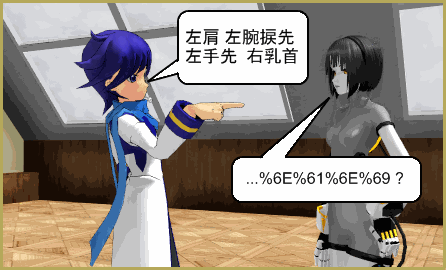
As far as the script is concerned; this is best typed into either a word processor or notepad. But, you won’t necessarily type-out the words as they are normally written; instead, write them the way they are to be spoken by the device. Most speech synthesizers will sound a little mechanical and can also do
ADVERTISEMENT
funny things with pronunciations… like they will not know the difference between words like “read” (reed) and “read” (red) as in the sentence “I read the book”… so you might want to intentionally misspell or mis-punctuate as you write in order to trick the synthesizer into pronouncing the words as you intend. Also, voice synthesizers are terrible with timing. Simply; they will process an entire script without pause even though in real life, we don’t speak in a stream of talk; as besides anything else, we need to breathe! But I’ll come back to explain how to do this with a speech synthesizer after we find one that can be used.
And we’re going to be really cheap too. You don’t need to buy one as there’s some around for free…
Free Speech Synthesizers…
If your script is in English, the speech synthesizer in MS Office is an ideal candidate. It’s called Lisa and is usually used as an aid for people who have some need to be able to hear what was typed into a word document. Lisa is very mechanical, at least in the version of her that I have which is bundled into the MS Office 2003 package.
Then again, you can get away with a Vocaloid sounding somewhat mechanical. After all, their singing isn’t exactly “human” sounding either.
But you can also use the speech synthesizer built into Google Translate which is almost human sounding. Speaking in Japanese or other languages of this type, it sounds very natural and the voice quality is very pleasant too. Plus of course, it is totally free. In fact, you can type your script in English and have the program speak the Japanese translation. Google Translate has a speech function for all of the world’s major languages.
To use it is really simple. Paste in your script one paragraph at a time. Then have the program speak it by accessing the speaker icon and record it.
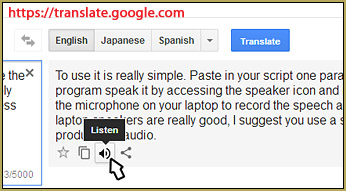
To record it, simply use the microphone on your laptop to record the speech as it is being read. Unless your laptop speakers are really good, I suggest you use a set of good external speakers to produce the audio.
In case this is not obvious, you will want to be in a really quiet space when recording. You will also need a program that can manage the recording process and Audacity serves well for this function.
Record one paragraph at a time…
… and edit the clips together.
Now since you’re recording one paragraph of the script at a time, you’ll end up with a whole collection of audio clips. To make it into an integral whole you will need to splice it together with Audacity – this allows you to mess with the timing and this is how to add pauses in your final audio. You also want to break up your script as the Google translate speech synthesizer can be problematic with huge amounts of text.
You can also use Audacity to change the voice quality. Since the Google Translate speech synthesizer uses an adult voice, raising the pitch, for example, will make it sound younger; and adding more treble will make it sound brighter. In fact, you will be surprised at how much you can change in terms of the final voice quality. So for example, you can make a male voice sound female and vice versa.
Once you have your final speech engineered just export it as a WAV file and you’re ready to do the rest of the animation. It really is that simple.
Anyway, I’ll include some example videos that I did using some of the methods outlined here.
The first example simply uses an audio clipping from the Lord of the Rings DVD.
The second example also uses an audio clipping from the same DVD, but the original speech was spoken by Aragon, who is a guy; at least the last time we checked. But in the clip I have Neru making the same speech. To make the speech sound “female”, I re-engineered the clip with Audacity.
But to make an original speech animation, I used MS Office 2003’s Lisa and tweaked it so that it sounds like it is being spoken by a chibi. Arguably, Google Translate’s voice synthesizer would have produced a much more natural sounding voice, but when this video was made that wasn’t an option.
Thanks for reading.
CREDITS:
Top Image:
Chibi IA v2.0 – Mqdl/Kiyo/Trackdancer
MMD 9.26
Image processed using Irvanview
– SEE BELOW for MORE MMD TUTORIALS…
— — —
– _ — –