

Skip to content
Learn MikuMikuDance – MMD Tutorials – Free 3D Animation Software

Learn MikuMikuDance – MMD Tutorials – Free 3D Animation Software

Download Free Animation Software – Let's Learn How to Do Everything!

  • Step-by-Step MMD instructions
  • DOWNLOADS
  • Troubleshoot, Fix MMD
  • Site Contents
  • Reggie Replies Q&A
  • Homework!
  • What IS MMD?
    • Download MikuMikuDance Newest Latest Version of MMD
  • “HOW TO”
    • Raycast RAY-MMD Effect Tutorials
  • BONUS PAGES
    • Why convert PMD models to PMX?
  • HALL of CHAMPIONS
  • Tutorial Categories
  • About
    • Privacy Policy
  • Toggle search form
  • Customize the MMD interface: Change the colors of the GUI Fia Phoenix
  • MME Plastic Effect Featured
    MME Plastic Effect adds plastic realism to MMD model parts MMD Tutorials
  • Re-size PMD Models and Keep the Bones and Physics! Adjust PMD Model Size
  • Dummy Bones allow you to customize your accessory manipulations!
    Using The Dummy Bone for MikuMikuDance Accessory Manipulation/Adjust
  • LearnMMD.com: The MMD Instructions you have been looking for! MMD Basics
  • Smooth camera moves and soft focus make for smooth scene transitions in MMD 7.39 . LearnMMD.com
    Smooth Scene Transitions featured in new MMD Departures video "the making of" my video
  • Cry Baby Motion DL featured image
    Free MMD Cry Baby Motion DL from DA’s Smol-Hooman "the making of" my video
  • Using Beamman Particle-styled MME effects Beamman's AuraParticle
MMD rotating 3D objects 360-degrees

MMD Rotating objects 360-degrees -Miku’s Guide to the Galaxy (Part One)

Posted on September 26, 2019October 11, 2019 By Trackdancer 1 Comment on MMD Rotating objects 360-degrees -Miku’s Guide to the Galaxy (Part One)

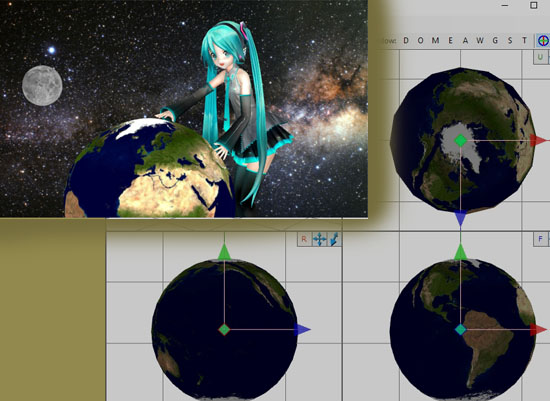
She's got the whole world in her hands... MMD Rotating objects 360-degrees

A feature article on LearnMMD by Trackdancer2015!It has recently come to our attention that people find that it is not easy to rotate objects 360-degrees in MMD, so this 2-part tutorial will show you how it is done.

Since we want to have a bit of fun too, we are going to show you how to spin a globe as well as an object that spins around a globe. The basic technique used is almost universal, so if you work through this tutorial as you read, you should be able to grasp the methods used to rotate anything in MMD successfully.

MMD Rotating objects 360-degrees…
Miku’s Guide to the Galaxy – Animating the Earth and the Moon (Part 1)

PROJECT SCOPE

In this project we are going to spin a model of the Earth, and have the Moon spin around it. Now, this is not an exercise in astronomy so there will be some liberties taken.

But first off, we are going to need to get suitable models and we will be using resources from this package: MMD Planets

EDITING THE MODELS FOR EASY ANIMATION

The models in the package are decent and can be used as issued; but for animation purposes they need a little bit of tweaking. So after you unpack the download, load up the Earth model in the PMX Editor. Specifically, we will be using PmxEditor vr.0254f English Version – v2.0. Very often, for animation work, it is much easier if the models are edited for easy operation before attempting to animate them in MMD.

Step 1: Upgrading the bone system

Load the Earth model into the PMXe and simply move the “center” bone to the center of the Earth model. By default this is on the ground at the origin point, but it will be a lot easier to use if it is moved. After the “center” bone is moved, use the Semi-standard bone plugin to add a mother bone to the model.
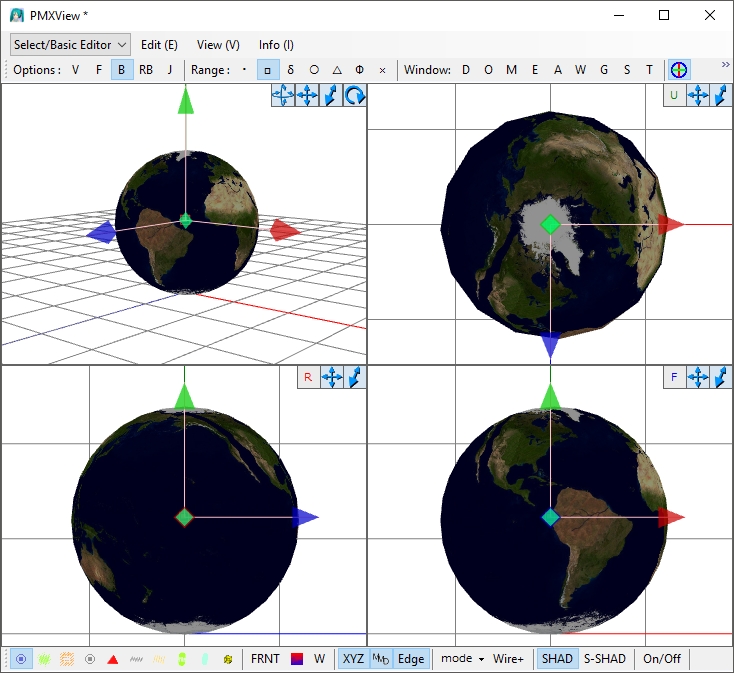
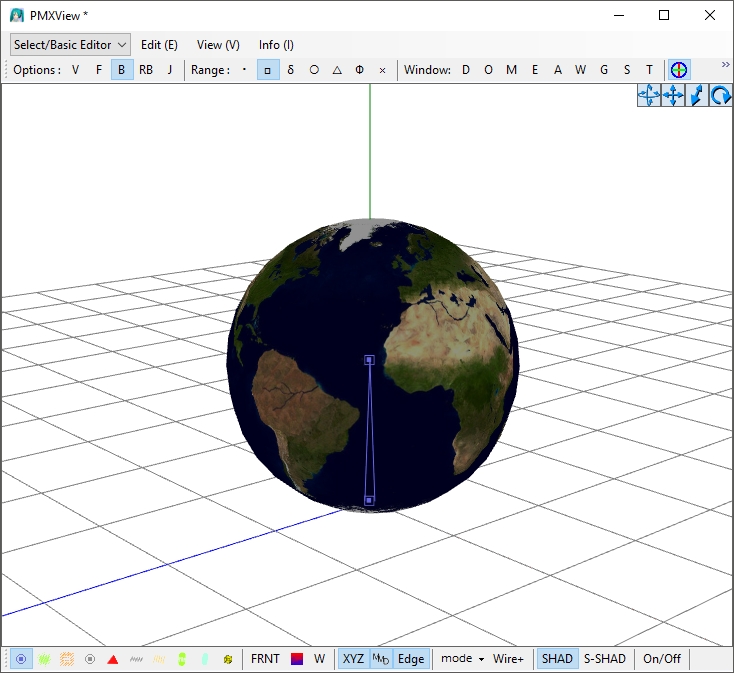
Move the bone to the center of the object to be rotated.
Move the center bone to the middle of the Earth model. This does not have to be accurate but make sure that “X” and “Z” axis values are equal to “0”


Add a Motherbone to the model. ... mother bone
Use the Semi-standard bone to add a “mother” bone to the model.

Create a new folder and save the modified version of the model here together with a copy of the texture map (earth2.jpg). Copy moon_tex.jpg into the same folder before going to the next step.

Step 2: Adding the Moon

Use the import function to add the Moon. Use the setting as shown in the image below. When it is added to our model, chances are that you won’t see it as it overlaps the Earth model. But there should be a new bone labeled “Moon”.
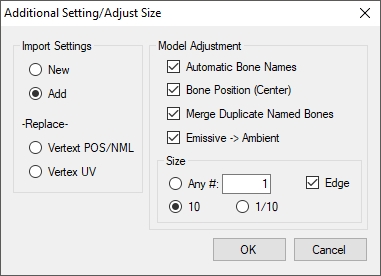
Toggle the Import Settings to use “Add”. The rest of the settings should be the defaults.

Use the material masking controls to hide the Earth model so that you can work on the Moon. Grab the Moon model and the “Moon” bone, shift them over to the side as shown and scale down the Moon model in the process.
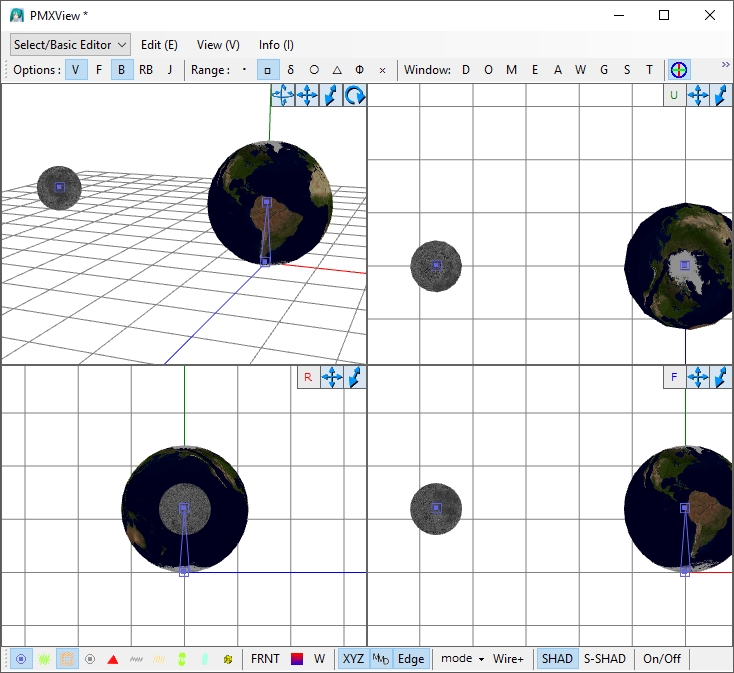
Move and shrink the moon model to the left of the model. The moon bone should be at the center of the moon or close to it.

Next add a new bone (moon rotate) and use the settings below to set it up; it should be a little higher than the center bone for easier access:

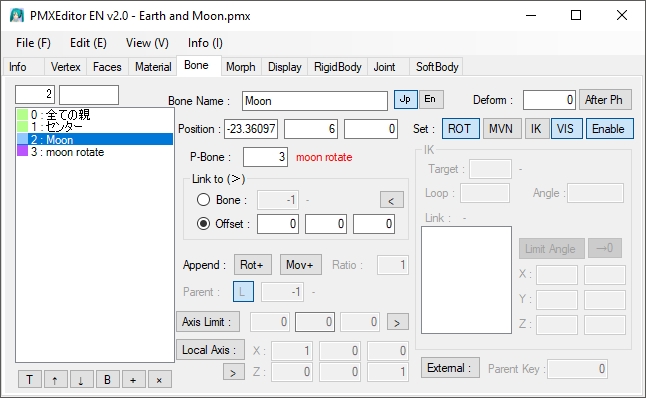
 

Use the settings above to properly set up the moon bone.


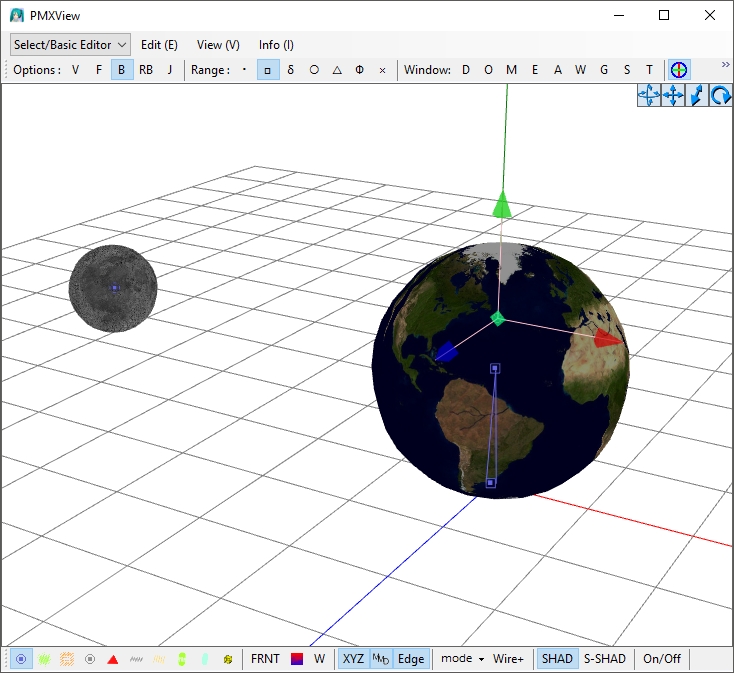
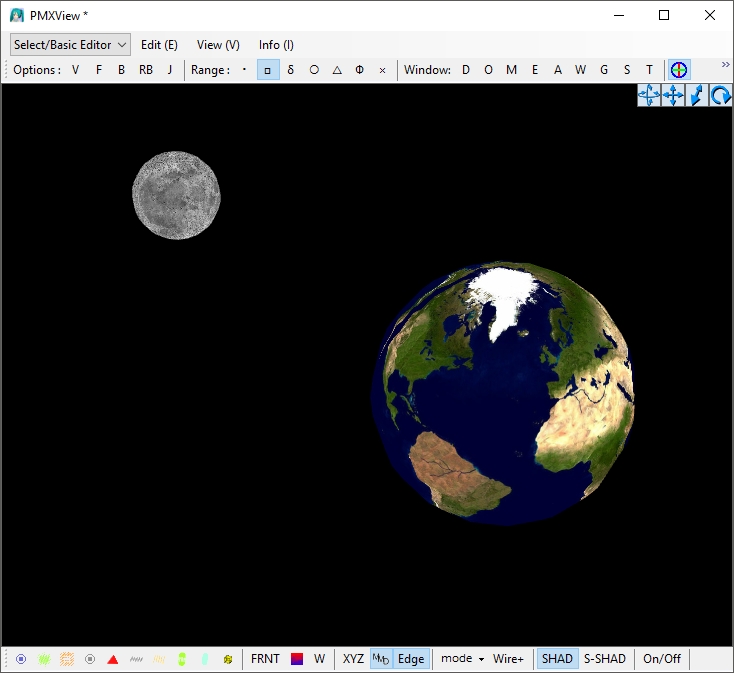
The finished modified model should look like our model shown above.

Before moving to the next step, make sure that all the bones labeled correctly when displayed in MMD. With a simple model like this, you can simply type in the label on the “EN” side of the “Bone Name” field. You should have the following bone labels:

  • Mother (or Root) bone
  • Center
  • Moon
  • moon rotate

Absolutely DO NOT CHANGE the Japanese labels; especially for the mother and center bones. Doing so can cause MMD to crash when the model is loaded.

Step 3: Correcting the materials specifications

As issued, the material specifications are not optimal so go to the materials tab and use the settings below to correct the issue. While you are at it correct the labels otherwise you will have two materials labeled “Material1”.
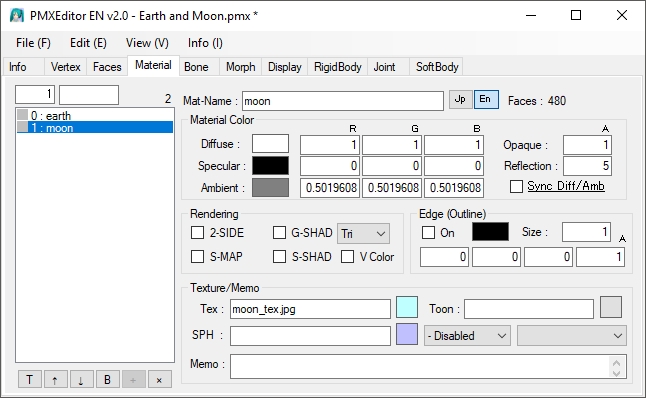
Correct the material specifications so that the model won’t look so dull in MMD.

Step 4: Editing the Groups List

The Groups List is very important so this needs to be corrected. You will need to create a new group to hold the bones controlling the moon. The “Moon” bone is listed under the “Root” category, so remove it from there and move it into the “3:moon” category. The “moon rotate” bone is unlisted and will need to be manually added. The controls are relatively straight forward and you should be able to figure them out. If not, leave a note in the comments.
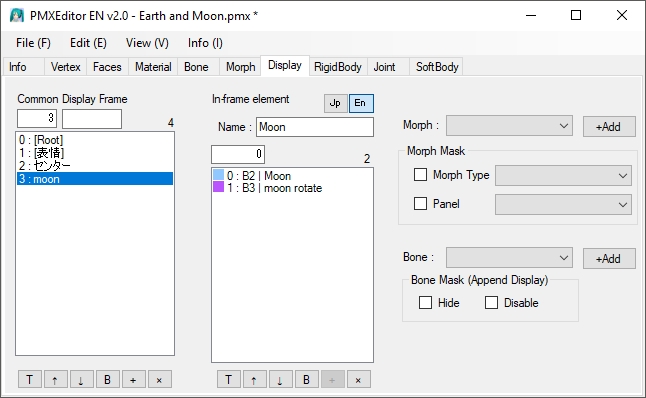
Use the field under the Display tab to make sure the Groups list displays properly in MMD.


After these simple edits your model should look like this and is ready to be animated in MMD.

Note that we have taken some liberties with the model as the Moon relative to the Earth is much larger than in real life; also the distance between them is drastically reduced. But for now, just save your model and we will show you how to do the animation in Part 2 of this two part series.

If you do not want the hassle of making the necessary editing described above, you can download the one made for this tutorial HERE.

CLICK to move-ahead into Part Two!


– SEE BELOW for MORE MMD TUTORIALS…


— — —


– _ — –


Visit the LearnMMD.com Homepage! Plenty of Mikumikudance instruction and info!

More MMD Tutorials...

Enjoy the "camera Angles WEIRD in Anime" meme...

Enjoy the "camera Angles WEIRD in Anime" meme... This image is from The Slayers - NEXT, ...read more

Reader asks how to create MMD artwork... stuff like posing, camerawork?

A reader asks... Is there a tutorial on how to create MMD artwork, like those you ...read more

Learn MikuMikuDance in Small Steps! New LearnMMD Video Series

Learn MikuMikuDance in Small Steps. Where can I find easy-to-follow MMD instructions on YouTube? How ...read more

Apply Multiple Effects on an Entire MMD Model Using M4Layer Effect

How can I apply multiple effects to an MMD model? Can I use more than ...read more

MMD Plugin Manager... I Found a Treasure!

What sorts of MMD Plugins are there? MMD Plugin Manager? MMD Plugins. Plugin MMD. More ...read more

2025: Hatsune Miku is 18... but she is designed to be always 16 Years. Old by design and in reality!

Finally, in 2023, Hatsune Miku is 16 years old! but in August of 2025, she ...read more

Making Smooth Motions, MMD Tutorials, Trackdancer2015

Post navigation

Previous Post: MMD Rotating Objects 360-degrees -Miku’s Guide to the Galaxy (Part 2)
Next Post: Voting is closed – You Chose the Winners!

Related Posts

  • Graphic Design Skills enhance MMD Pictures MMD Basics
  • Teto replies!
    Fixing white models and accessories that don’t follow in PMXE Bandages
  • MME Lighting Effect, PanelLight by Soboro, is easy to use!
    Add MME Lighting Effect illuminates model against dark stages MMD Tutorials
  • How to Use the Squash and Stretch Effect for MMD. ARIZONA
  • PMXEditor Quickly Edits MMD Model using Downloaded Parts BigPerryman
  • Easy Fun MMD Music Video Mahlazer Motion Download “Feel the Sound” MMD Basics

More Related Articles

Download the latest version of MikuMikuDance - MMD 9.32 Download the latest version of MikuMikuDance! Download MikuMikuDance
New Reggie’s Evil Eye demo video posted to YouTube "the making of" my video
MMD CameraSmoother Tool smooths camera motions! CameraSmoother Tool
More Motion Interpolation Curve Instruction for MMDers Creating Motions
Installing old DirectX 9c solves many MMD Missing DLL Errors Dealing with the Missing DLL Error
GaussianVariable MME Effect Blurs your entire scene! GaussianVariable

Comment (1) on “MMD Rotating objects 360-degrees -Miku’s Guide to the Galaxy (Part One)”

  1. Trey Borden says:
    September 26, 2019 at 12:30 pm

    You can thank me for this post, lol

    Reply

Leave a Reply Cancel reply

Your email address will not be published. Required fields are marked *

Download the latest version of MikuMikuDance!
See the MMD Step-by-Step instructions page!
Learn how to make your own MMD motions!
LearnMMD.com
  • Download VMDSpectrum Analyzer to create VMD files MMD Tutorials
  • Weight Painting MMD models in Blender with MMD Tools Bandages
  • MME fireintheskies effect
    MME FireintheSkiesEffect gives floating flame and embers! FireintheSkiesEffect
  • Make WAV files for MikuMikuDance Using Your Music Files Music and WAV Files
  • The New LearnMMD Stage "in action"!
    LearnMMD Auditorium Stage Announced Ready for Download Downloading New Models
  • Customize the MMD interface: Change the colors of the GUI Fia Phoenix
  • LearnMMD.com is back online after SIX days off!
    LearnMMD.com is BACK ONLINE, again! Reggie Dentmore
  • Neru Jams to the Background Music
    Downloading Background Music for MikuMikuDance Videos. ARIZONA

Copyright © 2022 Learn MikuMikuDance – MMD Tutorials – Free 3D Animation Software and Instructions..

Powered by PressBook Premium theme

Go to mobile version