


Is there an easy first dance? How do I move Miku in MikuMikuDance? How do I make a smooth motion in Miku Miku Dance? LearnMMD MikuMikuDance Tutorials. What do I do first? What can I do first? Easy dance.
A Little Beginner’s “Jump Dance” to get you started …
When you open MikuMikuDance for the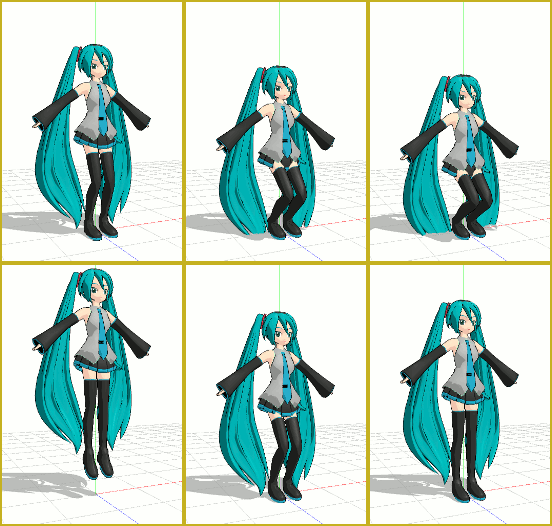 first time, you want to “do something” right away … and this simple jump dance is an easy first dance!
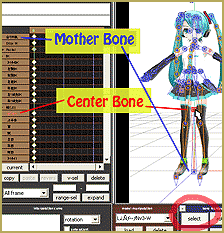
Select “New” from the File drop down. Then, from the small brown Model Manipulation Panel, choose LOAD … and pick a character … Miku Hatsune ? “:o). Click OK on the pop-up and see Miku standing there simply aglow with red and blue bones! See that the one bone that is RED is already selected for you. That is the Center bone … a key bone in controlling most characters. See on the Bone Chart … on the far left upper area of the screen … that CENTER is highlighted. At any time you can select any bone you wish by clicking its name on that chart.

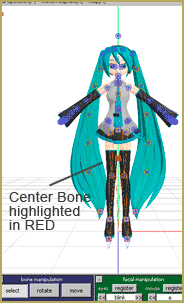
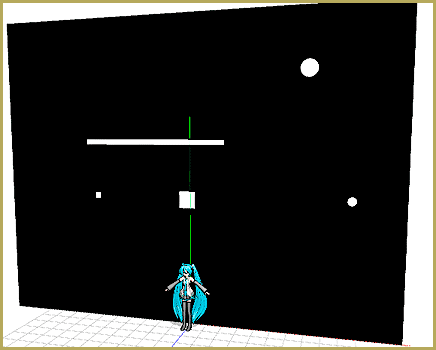
With the Center bone selected on the chart, go to the blue Bone Manipulation screen, click the MOVE button. Note that 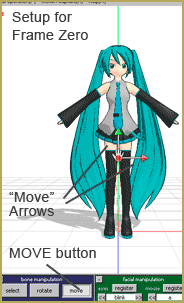 all the bones disappear and you have direction arrows on Miku. At this time we are only going to use the Green arrowhead. Click and drag that arrowhead and see how your character automatically bends at the knees or seems ready to fly as you move her up and down.
CLICK for large image
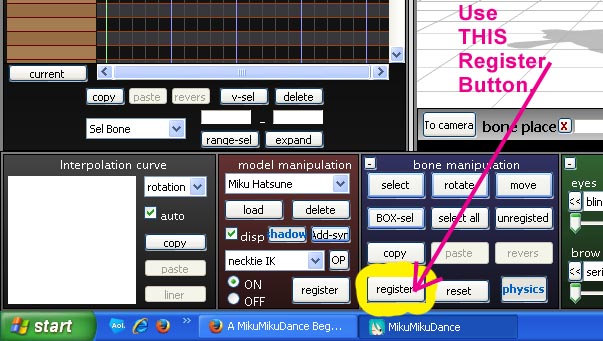
Set up the starting position with Miku standing at ease. See that the frame counter is at Zero. See that the Center bone is still highlighted and click Register to finish that frame. You will see the white Diamond by Center turn RED when it registered. Advance the frame counter to about frame 20. Move the green arrow down to make Miku crouch  until her knees are just above her ankles. Click Register. Advance the frame counter to 30 and move the center bone up until Miku is a foot, or two, above the floor and click Register. Advance the frame counter to 40 and lower Miku into a half-crouch and click Register. Move the frame counter to 45 and raise Miku to stand on her tip-toes and click Register. Advance the frame counter to 50 and place Miku in about the same position as frame zero. Click Register.
On the lower right of the main screen is the Play button. Try it out. Check the Repeat check box next to that Play button and watch the nice motion. SAVE the file with a name you choose … FirstDance ?
Below Play is a range window. This determines how many frames are in your animation. We only animated out to Frame 50 … but we can enter a bigger number to add a pause after that last Registered movement. Set the range to 75 and play … and play with repeat to see the effect of those extra frames. Set the range to 50 and the animation will look as it did. Click SAVE. Practice … practice … to learn how to do everything!


<
– SEE BELOW for MORE MMD TUTORIALS…
— — —
– _ — –


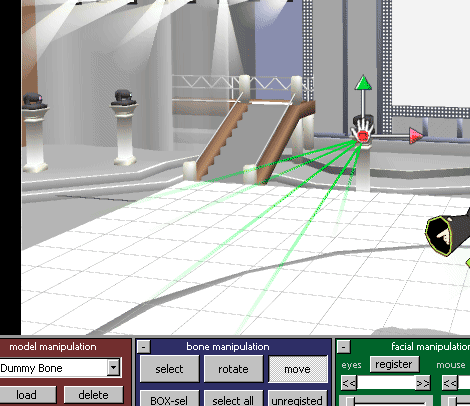
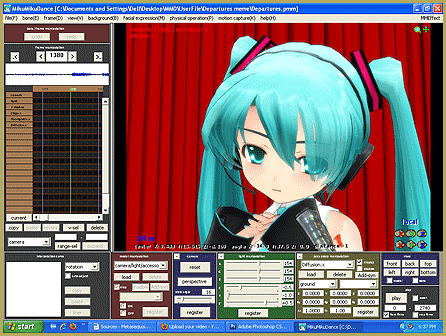

hi! I know this is the wrong page for this but my MMD won’t open at all. Do you know how to help with this? :P
Glad to help!
Please tell me what you are doing and what happens… do you get any error statement?
— Reggie
See my “success” article.<-b>
hello i have a question, i just got MMD yesterday and i wanted to know if i can download dances that people have already used, for example the ‘i like it’ by cardi b, there’s plenty of people using it, the same dance, with different models and i just can’t comprehend where can i get it aswell? first i thought it was the motion, now im confused with everything ^^’
Well, if you’re interested in a particular motion that you’ve seen in videos, check their description first. Good MMDers credit their sources, and there’s a chance you’ll find not just the name of the author but a ready link to where the motion was taken from. Otherwise, just google for “MMD”, (the name of the song), “Motion” and “download” (or “DL”). If you don’t know what exactly song you want motion for and just browse for something cool, start here.
See Page 3 of our Step-by-step instructions about saving a motion file and using downloaded files.
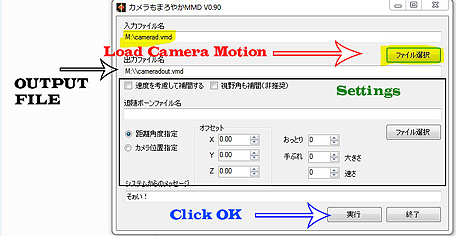
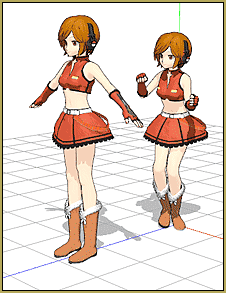
Also see THIS one about adjusting motion files to suit your particular models.
Also see THIS tutorial showing how to download and use motions files as you “do” the Happy Hands meme.
Miku
how do i set the time balance in it ,my miku character is jumping really fast which is
ruining the step itself.
The standard pace for an MMD animation is 30 frames per second… so you have to move the frame counter to space-out those diamonds to match the speed you want.
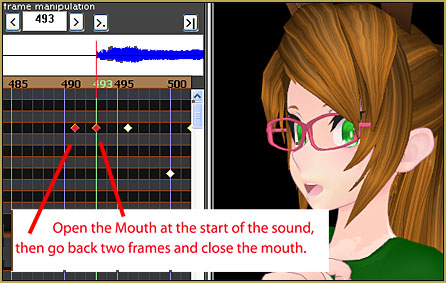
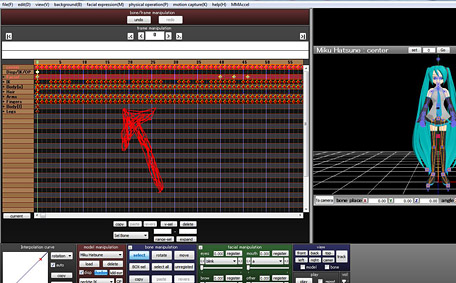
Another thing you can do if you already have a block of motion diamonds in place but the tempo is incorrect is use the EXPAND function. Enter a number greater than 1.0 to extend the motion’s length or enter a number LESS than 1.0 to speed-up the motion… I recently worked on a project in which, after I was well into it, I discovered that my motion was too slow… I needed things to move more quickly. I used Range Select to highlight all of the affected diamonds and then entered a value of 0.95 into that EXPAND box. … and now all was faster, but not quite enough… I entered another 0.98 into that EXPAND box… and then, did that, again… and NOW the speed is exactly what I need.
Ouh.. Whe i clickload, i can notpickmiku hatsune, it takes me to my files. can anyboyget me a dl for an easy model that works? (I tried 2 models,but i don’tthink they were the croorect file format)
Yes… You click LOAD and it takes you to your files… navigate to your MMD folder>UserFile>Model>Miku Hatsune
It’s very easy… best of luck.