




 What’s new about MMD? How is MikuMikuDance 9.12 different from 7.39? What is OP? How do I move multiple models at once?
The Outside Parent Setting
Lets You Connect Bones in MMD
It looks like MMD is on an updating spree, but what do any of the new versions 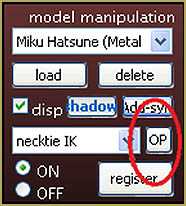 have to offer that 7.39 doesn’t? As early as MMD 9.12, one of the cool new features is the Outside Parent Setting (or OP for short). OP is a button placed in the model manipulation panel that can let you connect an IK bone with another bone of the same model or another one. It’s similar to attaching accessories to Dammy bones or to models themselves.
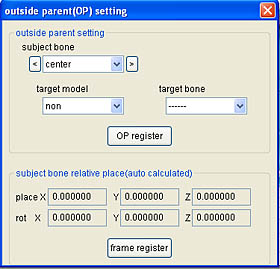 When OP is clicked, a pop-up will appear with a couple of options:
–Subject Bone refers to the model you currently have selected in the model manipulation panel. Notice that when you open the sub-menu, all of the model’s IK bones are listed. Here you can choose the bone that you want to use for pairing.
–Target Model is for WHO or WHAT you want the IK bone you selected to connect with. I tried the ground, but it doesn’t seem to do anything.
–Target Bone has a list of all the actual bones the subject model can connect to.
When finished playing with these settings, hit the OP register button to confirm them. There is also the frame register button on the bottom. I don’t know what clicking it does, but I do it anyway. I also find that you can’t alter any of the input numbers that you see; they’re just to show you where your models are on the axis.
Now when you move the target model you selected, the subject bone should follow its movement!
What can I use this for in MMD?
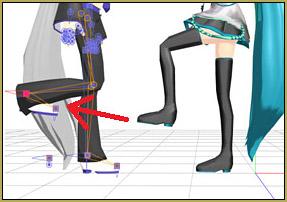 The possibilities are endless! I haven’t tried this yet, but it seems like I can attach accessories to Dummy Bones, then connect the Dummy to a model’s hand with ease, which is pretty neat considering the fact that I don’t have to play with the accessory manipulation panel as much anymore. Register multiple connections at once and see what you can make of it! You can create excellent timing if one of your models is dodging a blow in a brawl with his arch nemesis, or if your model is up for a ride in that slick car you downloaded without making it look awkward or “off”
By the way, I’ve noticed that models will spin uncontrollably if certain bones become connected (i.e. rotating the upper body bone when its connected to the center bone on the same model). I can’t find an explanation for this, but you can still animate and use any of the functions that would normally be “greyed” out after clicking the “play” button.
Don’t hold back on trying out new things! See what you can make of this in MMD!
Editor’s notes:
This is what Frame Register means:
If you hit “OP register” alone, attached object’s bone coordinates stay the same. That is, if it was (0,0,0) before attaching, it will be (0,0,0) after attaching as well, BUT in relation to the anchor bone’s position and orientation instead of ground (or a previous attacment). At that particular frame, the object will instantaneously jump between two positions.
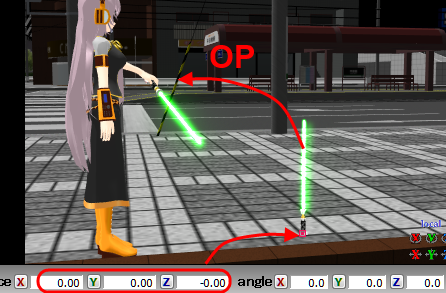
If you *do* hit “frame register” along with “OP register”, object’s bone’s coordinates will be recalculated in a way allowing it to stay visibly in the same place. After attachment, it will follow anchor bone’s movement and rotation as if connected to it by an invisible bone.
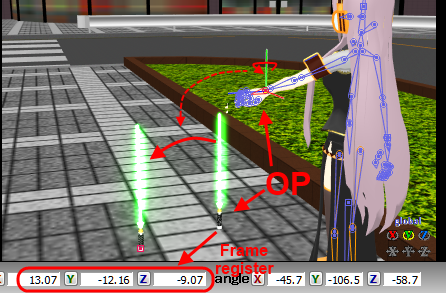
The Force is strong in this new setting!
Additional pictures use: Lika Megurine by Animasa, Lightsaber model by Wampa, Hiratabashi Station stage by AkitaFanZ.
– SEE BELOW for MORE MMD TUTORIALS…
— — —
– _ — –



What should I do if my model’s legs won’t bend at the knee? ;-;
Do you grab it by the IK bone and drag it by the foot, or just try to rotate the knee/hip? Unlike hands, legs are moved by their IK bones by default, to change that, you should disable them in the Model Manipulation Panel.
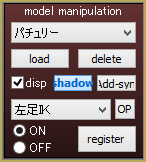
Select “leg IK_L”, “leg IK_R”, “toe IK_L”, and “toe IK_R” in the lower list when the model is selected in the upper one, For each selection, hit “OFF” and then “register”.
I just noticed that the IK _toe and the IK _leg on both right and left leg are “coneccted to the ground. Whenever i move the center of the model, the leg got messed up. please help!!!!
That/s why good models have motherbones. Learn to add them.
I am so glad that they added this new functionality in. This makes character manipulation of model based props so much easier.