





Is there an easy first dance? How do I move Miku in MikuMikuDance? How do I make a smooth motion in Miku Miku Dance? LearnMMD MikuMikuDance Tutorials. What do I do first? What can I do first? Easy dance.
A Little Beginner’s “Jump Dance” to get you started …
When you open MikuMikuDance for the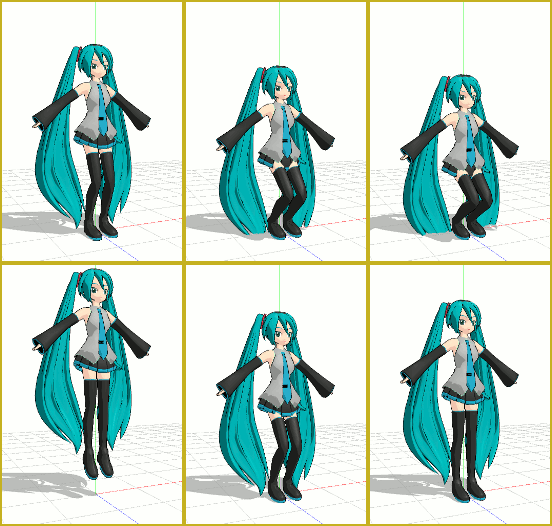 first time, you want to “do something” right away … and this simple jump dance is an easy first dance!
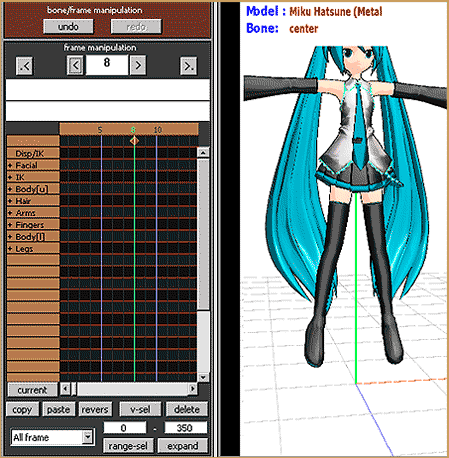
Select “New” from the File drop down. Then, from the small brown Model Manipulation Panel, choose LOAD … and pick a character … Miku Hatsune ? “:o). Click OK on the pop-up and see Miku standing there simply aglow with red and blue bones! See that the one bone that is RED is already selected for you. That is the Center bone … a key bone in controlling most characters. See on the Bone Chart … on the far left upper area of the screen … that CENTER is highlighted. At any time you can select any bone you wish by clicking its name on that chart.

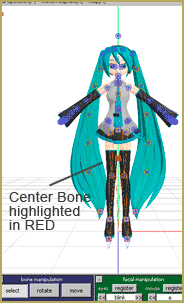
With the Center bone selected on the chart, go to the blue Bone Manipulation screen, click the MOVE button. Note that 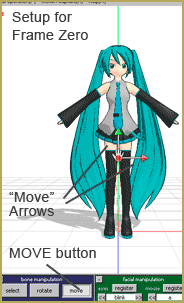 all the bones disappear and you have direction arrows on Miku. At this time we are only going to use the Green arrowhead. Click and drag that arrowhead and see how your character automatically bends at the knees or seems ready to fly as you move her up and down.
CLICK for large image
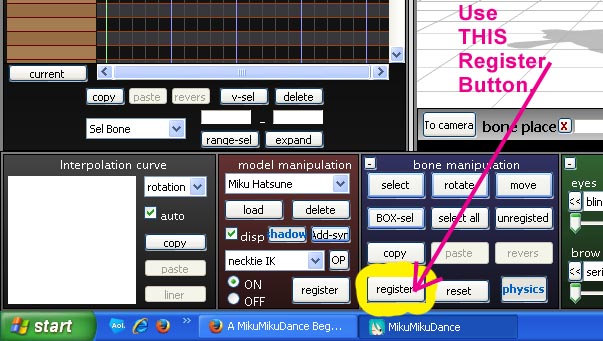
Set up the starting position with Miku standing at ease. See that the frame counter is at Zero. See that the Center bone is still highlighted and click Register to finish that frame. You will see the white Diamond by Center turn RED when it registered. Advance the frame counter to about frame 20. Move the green arrow down to make Miku crouch  until her knees are just above her ankles. Click Register. Advance the frame counter to 30 and move the center bone up until Miku is a foot, or two, above the floor and click Register. Advance the frame counter to 40 and lower Miku into a half-crouch and click Register. Move the frame counter to 45 and raise Miku to stand on her tip-toes and click Register. Advance the frame counter to 50 and place Miku in about the same position as frame zero. Click Register.
On the lower right of the main screen is the Play button. Try it out. Check the Repeat check box next to that Play button and watch the nice motion. SAVE the file with a name you choose … FirstDance ?
Below Play is a range window. This determines how many frames are in your animation. We only animated out to Frame 50 … but we can enter a bigger number to add a pause after that last Registered movement. Set the range to 75 and play … and play with repeat to see the effect of those extra frames. Set the range to 50 and the animation will look as it did. Click SAVE. Practice … practice … to learn how to do everything!


<
– SEE BELOW for MORE MMD TUTORIALS…
— — —
– _ — –





Ahh thank you very much KillerBeer! Ah, being the dumb blonde I am, I’ve been pressing the facial register this whole time. Thank you!
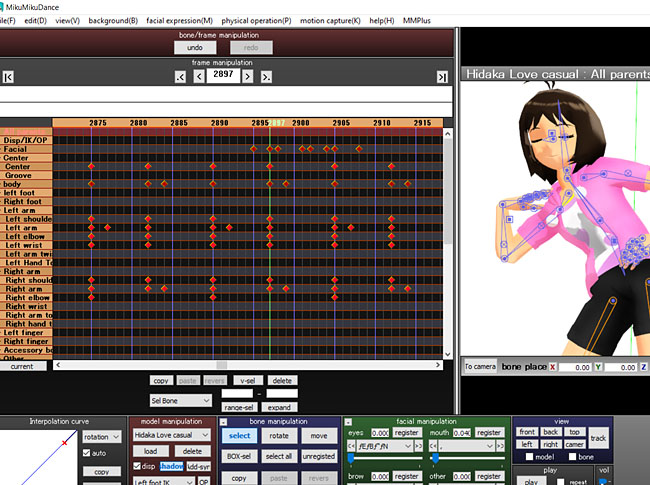
There are several “register” buttons (confusing, yeah) – model, bone, and facial panels each have their own (and that’s not counting those in screen mode). Are you sure you pressed the correct one?
Hi! Just downloaded MMD and having some trouble. Every time i click register it registers under facial instead of center, like the little diamond goes red under facial and not center. Then when I move up frames, the model jumps up to where it started. Help?!
I don’t see any frame counter.
I just sent you an email with a picture indicating the Frame Counter. Let me know if I can be of more help!
Oh totally answered my own question…got it! Thanks!
That’s all right … keep asking questions … we can all learn. Thanks for reading our pages! Send me an email when you post your first video … I will subscribe to your channel!
Just leaning and saved my first jump/dance. When I try to open the file, I get an error message saying it cannot open model file. I’m given 3 options: specify the place of model file and load; skip this model and continue; cancel to load this project. Not sure what I missed!
Thanks, KB! Man, I feel like I should’ve been able to figure that out myself.
Square-shaped bones can move freely, circle-shaped only can rotate. That is, if you want to move a leg, you drag it, but if you want to move an arm, you bend the shoulder, then the elbow, and then the wrist. Upper set of XYZ is for rotating.
I could do this exercise just fine, but I can’t seem to be able to accomplish anything else! I can’t move any other body parts except the center, some clothes, and the legs. I noticed all of the parts I can move have square-shaped markers and all the immovable parts are circles. A little help? :’)
as soon as I moved the center I just did the rest myself I am quite a quick learner and now I have a jumping animation but could you perhaps give me a link to arm moving tutorial?
Not really … but I do have this one … about adjusting an arm to toss a ball: https://learnmmd.com/MikuBall/BallToss2.html
See the HOW TO page tab (above) for links to some motion tutorials.
The0: you probably placed your diamonds too close to each other so they play too fast. A second basically takes 30 frames. You can dilute them by selecting an “Insert frame” command between diamonds in Frame Manipulation Panel. “I” key inserts a frame for motion bones, “U” does the same for facial expressions, “K” and “J” remove the current frame respectively. (With latter, be careful not to erase an important diamond!)
When I try playing my PMM, It goes to fast to see, Please help :3…
I tried it with a model I downloaded online. It works, but when I save the motion and load it onto another character, it doesn’t work anymore.
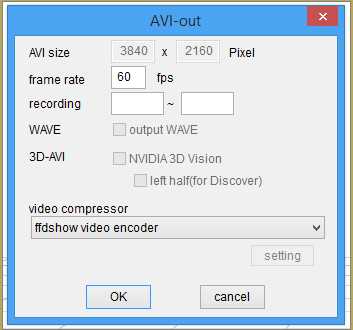
How to you make the AVI file move more smoothly? Or will it play smoothly when it’s on Youtube?
The model i got seems to have NO center bone, how do i add one? Oh and when i pull the model down, the legs wont bend, even if i select it and pull the thing wont obey me what do i do?
We DO have an article about adding a Center Bone (Mother Bone). USUALLY the “Legs won’t bend” is because you have a Japanese model, and you acnnotread the bone names … and you have selected the top bone, thinking it’s the Center Bone … and it is not! Often that top one is the Mother Bone. Some models SHOW a Mother Bone … but don’t actually have one.
here’s my article about not feeling the floor … Hope this helps!
— Reggie D