



How do you use the Interpolation Curve in MMD? What does the Interpolation Curve do in MMD? What is the purpose of the  Interpolation Curve in MikuMikuDance in MMD DirectX? What is the Interpolation curve in MikuMikuDance Direct X version?
Using the Interpolation Curve in MikuMikuDance.
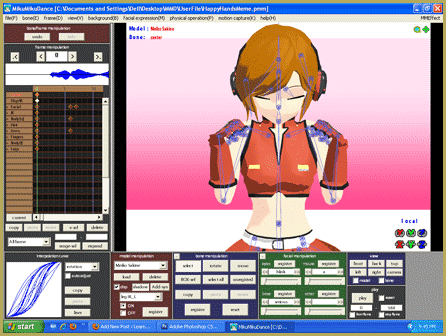
Remember in Math class when you studied graphing and you had to plot and connect your answers on a grid? You didn’t know it, but you were interpolating your answers. Interpolation, in MMD, is showing the relational change in movement between  two points, over a specific time frame. The Interpolation Curve Panel is that panel in the very bottom left corner of your screen when you open MikuMikuDance. It just sits there looking rather innocent, yet it is one of the most powerful features in MMD’s arsenal. Using the Interpolation Curve, allows you to customize the motion data you create. It can manipulate movement in all three XYZ axes. So don’t be afraid of it.
You read MikuMikuDance’s Interpolation Curve (IC) from left to right. You can adjust the curve by grabbing the two red “X’s” and changing the shape. What the curve does is to distribute the velocity of the movement. This is all done within the frames you have selected in the Frame Manipulation Panel. The diagonal line shows that the speed dispersed evenly throughout the movement. A plateau shows a pause or slowing of the motion. Peaks and valleys denote a sharp increase or decrease in speed and location of the movement.
Curves Ahead:
I created motion data showing a simple slide across the field. I’ve loaded 5 beach balls and given them the exact same motion data. Using the Interpolation Curve will create some radically different effects to the motion data. These are, by far, the most extreme examples of using the Interpolation Curve. Remember, this is only a demonstration- So please no wagering.
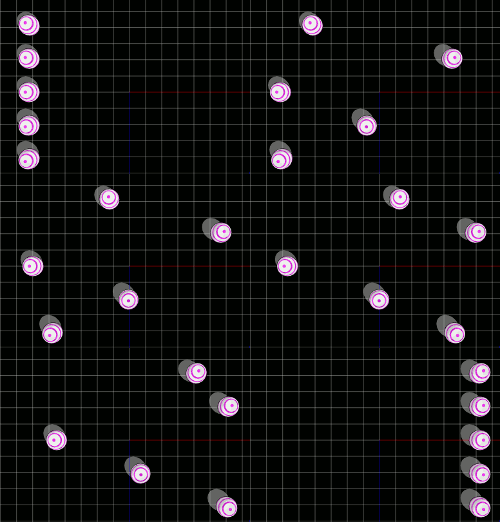
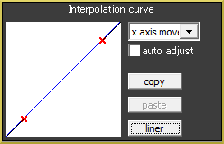 Ball number One at the very top is the original motion data. This is the standard curve (Really there’s no curve at all). The motion is evenly distributed throughout all 230 frames.
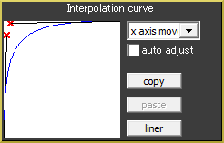
This will be the fastest interpolation out of all the examples. The ball shoots out ahead and then eases slowly toward the end. This starts out with a peak and then the curve flattens out.
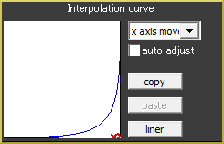 Ball Three makes a really slow start; will then move toward a rapid acceleration right to the finish. This makes sense because it is the polar opposite of ball Two.
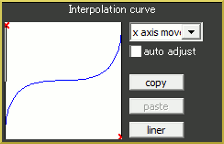 This goofy little curve seems to rush out as denoted with that first peak in the action; plateaus to a crawl, seems to get lost; pauses; figures out where the finish is and then sprints to the end.
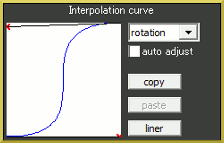 Ball Five starts out with timid baby steps. Then, goes into a really fast dash as shown by the almost vertical line. Then finishes with baby steps again.
Notice how differently each of these balls move according to the changes made to the Interpolation Curve. Yet, they all end the motion almost simultaneously. An important distinction to remember is that no matter what you do using the IC the motion data itself is unchanged. Knowing this, you can tweak all your motion data using the other Y and Z axes and create more fluid and realistic motions.
You can switch between axes by using the arrow button. You have X, Y, and Z axes; rotation, distance, view angle and all. The auto adjust resets all your changes. This is good if you just want to “audition” a change using the Interpolation Curve without committing. Otherwise, it seems to be more of a nuisance than a help. Load up a model and create some motion data and play around with Interpolation Curve. You do have to set the IC selection field to “all” or the axis you are working on. “Rotation” is the default setting. Don’t forget to play with the other axes.
A slight S-curve is, by far, the most commonly used curve in MikuMikuDance. However, most things in nature move with sudden starts and jerks. So, prudent use of the Interpolation Curve can take your animation to another level.
Credits: Beach ball by Bolloz111.
Have fun with this.
– SEE BELOW for MORE MMD TUTORIALS…
— — —
– _ — –






How come when I use it, sometimes it will show no difference at all? Even if I put it into a high curve.
There’s a little window there that lets you select which aspect of the motion gets the curve … rotation, view angle, ALL … I usually set it for ALL.
hola que pasa si no tengo ninguna curva y hace movimientos trabados ? :((
I see your question as: Hello, what if I have no curve and makes movements stuck?
I guess I need more details. … What happens (or what does not happen) when you do what?