
Skip to content
Learn MikuMikuDance – MMD Tutorials – Free 3D Animation Software

Learn MikuMikuDance – MMD Tutorials – Free 3D Animation Software

Download Free Animation Software – Let's Learn How to Do Everything!

  • Step-by-Step MMD instructions
  • DOWNLOADS
  • Troubleshoot, Fix MMD
  • Site Contents
  • Reggie Replies Q&A
  • Homework!
  • What IS MMD?
    • Download MikuMikuDance Newest Latest Version of MMD
  • “HOW TO”
    • Raycast RAY-MMD Effect Tutorials
  • BONUS PAGES
    • Why convert PMD models to PMX?
  • HALL of CHAMPIONS
  • Tutorial Categories
  • About
    • Privacy Policy
  • Toggle search form
  • Fireworks Kai effect
    Using the Fireworks Kai effect for MikuMikuDance. ARIZONA
  • GaussianVariable MME Effect Blurs your entire scene! GaussianVariable
  • MMD Rotate object 360-degrees part 2
    MMD Rotating Objects 360-degrees -Miku’s Guide to the Galaxy (Part 2) Making Smooth Motions
  • Creating Inspirational Pictures in MMD MMD Fine Art
  • LearnMMD.com's Video Dojo Expo FIVE
    Video Dojo Expo Five Entries… The VOTING is Done! Video Dojo Competition
  • PMXE 0254f a Newer PMXE in English – More Complete Translation – Tools Reconfigured KillerBeer
  • Adjusting the Physical Operation Tab settings in MMD 9.10 Functions-Copy-Paste-Expand
  • Create MMD Abstract Art from Low-Res Videos! MMD Tutorials

Using Beamman Particle-styled MME effects

Posted on July 22, 2015August 11, 2015 By Zazi 12 Comments on Using Beamman Particle-styled MME effects

See all the articles written by Zazi on LearnMMD.comHow do I use the AuraParticle Effect? How do I set up the Beamman particle-style effects? Why doesn’t the Beamman BeamCharge Effect work?

Does anybody else have trouble
with some effects from Beamman?

Using Beamman Particle-style Effects

Well, not to worry… here I am with steps for
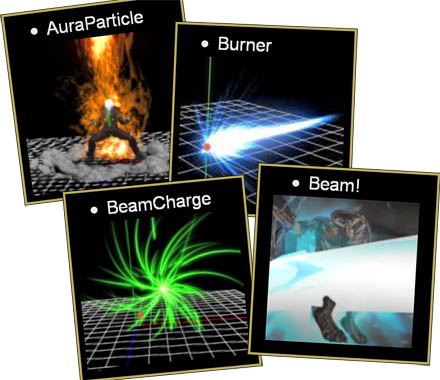
Beamman's Particle Effects are wonderful... but can be tricky!


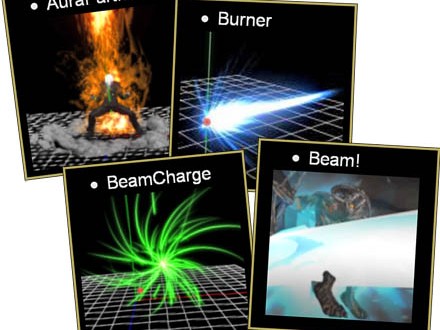
  • AuraParticle effect

  • Burner effect

  • BeamCharge effect

  • Beam effect

Step 0 – Download effect from Beamman’s effects page and drop all files into your Effects folder in MMD. See how to navigate Beamman’s page!

Step 1 – Attach to a dummy bone Via OP Menu

Attaching the effect to a dummy bone and the dummy bone to your model using the Outside Parent lets the effect be attached to your model, and yet you are able to set it down or transfer it to another model by undoing the OP when you are done with it.

Step 2 – in the AMP, set Tr and Si to 0.0

Step 3 – Register about 5 frames before you want the power effect with Si at about 0.0 … and Tr at 1.0

Step 4 – Register 10 frames after power up effect with Si at about 2.0 … and Tr at 1.0

Step 5 – Enjoy playing around with  the effect ^_^

Note: The BeamCharge effect is a little different- do not Register in MMD until you are at the frame where you want it to start due to the way it auto charges based upon the frame.

Here are a couple of my videos to demo the effects!


– SEE BELOW for MORE MMD TUTORIALS…


— — —


– _ — –


Visit the LearnMMD.com Homepage! Plenty of Mikumikudance instruction and info!

More MMD Tutorials...

Reader asks how to create MMD artwork... stuff like posing, camerawork?

A reader asks... Is there a tutorial on how to create MMD artwork, like those you ...read more

Learn MikuMikuDance in Small Steps! New LearnMMD Video Series

Learn MikuMikuDance in Small Steps. Where can I find easy-to-follow MMD instructions on YouTube? How ...read more

Apply Multiple Effects on an Entire MMD Model Using M4Layer Effect

How can I apply multiple effects to an MMD model? Can I use more than ...read more

MMD Plugin Manager... I Found a Treasure!

What sorts of MMD Plugins are there? MMD Plugin Manager? MMD Plugins. Plugin MMD. More ...read more

2025: Hatsune Miku is 18... but she is designed to be always 16 Years. Old by design and in reality!

Finally, in 2023, Hatsune Miku is 16 years old! but in August of 2025, she ...read more

SEARCH LearnMMD.com... it's Easy!

Search LearnMMD.com to find your answers! With the posting of this article, LearnMMD.com has 758 tutorials ...read more

Beamman's AuraParticle, Beamman's Beam! effect, Beamman's BeamCharge, Beamman's Burner effect, MMD Tutorials, MME Effects Tutorials, Zazi

Post navigation

Previous Post: MMD Light Manipulation Panel helps set the mood
Next Post: Use PMDE to make a Model for MMD almost from Scratch

Related Posts

  • How to sign up and Upload to Piapro! HollyLawliet
  • Rendering in 4K video at 60FPS with MMD 4k video
  • Beamman’s MME SelfFreeze Effect for MikuMikuDance 7.39 MME Effects Tutorials
  • o_ShaderCustomSet_v0_3 effect applies gentle color modification MMD Tutorials
  • Set MMD Widescreen Screen Size balance Size VS Quality MMD Basics
  • Download and Configure the OldTV MME Effect for MikuMikuDance Customize MME effects

More Related Articles

MMD Camerawork sets the mood, enhances the animation, and showcases your models! MMD Camerawork sets mood enhances animation showcases models "the making of" my video
Hatsune Miku is 16 years old in 2023! 2025: Hatsune Miku is 18… but she is designed to be always 16 Years. Old by design and in reality! MMD Tutorials
Cycles materials for textures model and nodes Cycles Materials For Textures in Blender: Nice Textures for MMD Fast! Blender
Learn to Edit MMD Effects by Editing Raycast Materials Bandages
Sweet Home 3D Creates Custom MMD Interiors as .x or .pmd MMD Tutorials
Position Model Parts in PMDE using a placeholder .x Model image Making Models

Comments (12) on “Using Beamman Particle-styled MME effects”

  1. Sonic Legend says:
    February 5, 2024 at 12:21 am

    hey so great tutorial, only issue is every time i try to render it to an image, the aura effect just completely disappears, is there anyway around that?

    i’m using auraparticles btw.

    Reply
    1. Reggie_Dentmore says:
      February 5, 2024 at 3:10 pm

      Hello! When you render to picture, you are commanding an instantaneous snap-shot of the screen. The particle effects require a few frames to generate. So, when you render to picture, the effect hasn’t started yet: it’s not there. … The only way around it that I know of is to render to video and then do a “PrintScreen” screen capture of the effect in progress. Use a large screen size like 1920×1080 and view your video at full-screen on your monitor so that your screen capture is of high quality.
      Yes?
      — Reggie

      Reply
  2. ink says:
    February 3, 2022 at 1:10 am

    hey uh I can use the effect now, but I’m not sure how to resize the effect

    Reply
  3. Nick says:
    March 6, 2017 at 9:54 am

    Ive done everything step by step, but for whatever reason the effect wont show

    Reply
    1. KillerBeer says:
      March 6, 2017 at 10:57 am

      Actually, it’s more complicated than the article makes it look, as every other effect has its own specifics. Which one gives you trouble?

      Reply
  4. Kiyoshi says:
    May 24, 2016 at 1:16 am

    i have situation but i don’t know how to explain it…..
    you can see it on this pic: http://imgur.com/zORDrtG
    the effect is on root bone of the model but the display is not exacly like these Beamman’s video
    can you tell me what i must to do?
    sorry for my bad grammar
    thanks

    Reply
    1. KillerBeer says:
      May 24, 2016 at 9:57 am

      So, what did you try to do and how the picture is not it?

      Reply
      1. Silent Headset says:
        May 24, 2016 at 10:07 am

        I think he means that the burner effect isn’t displaying like the ones pictured here. It looks like..I dunno…pastel-colored?

        But then again, the AMP says burner2.x and the one pictured here is the normal burner.x effect. So perhaps it IS meant to be a different effect?

        Reply
      2. KillerBeer says:
        May 24, 2016 at 11:23 am

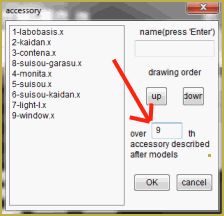
        Anyway, there’s an article dealing with Burner, see if it has answers to your question. Also, if the order of drawing is the problem, adjust it in the “background”->”accessories edit” panel.
        Reply
        1. Kiyoshi says:
          May 30, 2016 at 2:46 pm

          thank you so much ^^

          Reply
  5. qq says:
    January 16, 2016 at 8:14 am

    what is the Amp, Ti and ST?

    Reply
    1. Reggie_Dentmore says:
      January 16, 2016 at 9:51 am

      Howdy… I got your email and sent an answer. The AMP is the Accessory Manipulation Panel; it’s down on the lower right of the MMD screen. Si controls Size. Tr controls transparency.
      I do not know what Ti and ST are… ??

      Reply

Leave a Reply Cancel reply

Your email address will not be published. Required fields are marked *

Download the latest version of MikuMikuDance!
See the MMD Step-by-Step instructions page!
Learn how to make your own MMD motions!
LearnMMD.com
  • Raycast Ray-MMD Toon Shader
    Ray-MMD Toon Shading Basics MMD Tutorials
  • Download MMD 9.32 MikuMikuDance latest version Download MikuMikuDance
  • VDE-4 Champion: Reona Video Dojo Champions
  • Continuation of previous article's dispute!
    Beamman GSW Gauge for Game-like HP Health Points Display Beamman's GSW Gauge
  • Adjust downloaded motions to fit your MMD models Animation Shortcuts
  • The new Getting Started with MMD video spends some time on the Sample Dances.
    Use Tricks to Study the MikuMikudance Sample Dance Functions-Copy-Paste-Expand
  • Editing Effect Textures Creates Brand New Effects! Chestnutscoop
  • Windows 11 S Mode can be swicthed off.
    Windows 11 S Mode: The app you’re trying to install isn’t a Microsoft verified app. Troubleshooting MMD

Copyright © 2022 Learn MikuMikuDance – MMD Tutorials – Free 3D Animation Software and Instructions..

Powered by PressBook Premium theme

Go to mobile version