


 Fia, how can I change the colors of my MMD control panel? How do I customize the “look” of my MMD GUI?
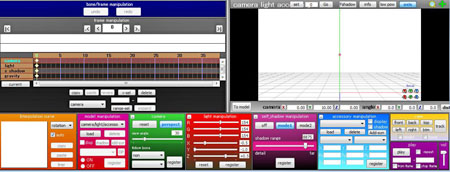
Customize the MMD interface!
Hello LearnMMD.com, and long time no see! I have returned from the void (nobody would stop staring into it) and bring you a not-so-brand-new way to customize the MMD interface.
Worry not, for you don’t need any fancy programs for this; just a way to browse files and a copy of MMD. Please be aware that while much of the following is ripe for customization, some things are best left alone. Though unlike other programs, changing something by mistake in this file won’t break the program, as long as you fix it back!
Now then, let’s find our file! Open your main MMD folder, wherever it may be, and go to the Data folder. (normally right at the top)
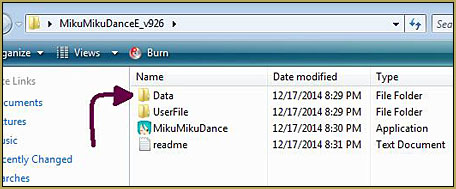
Okay! We found our data folder, now we need to find our color file! Well, it’s not any of those pictures you see, unfortunately. It’s nothing but a text file called color.txt. This can also get a bit technical with the colors.
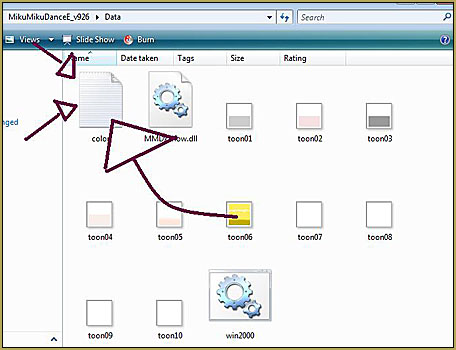
Remember, we are NOT using the toon files today- JUST the COLOR file. I suggest making a copy of the file and renaming it to something like “original colors” or “blank flakes” or something, so you can have it on hand if you get sick of the new colors you pick. Now go ahead and open the color file!
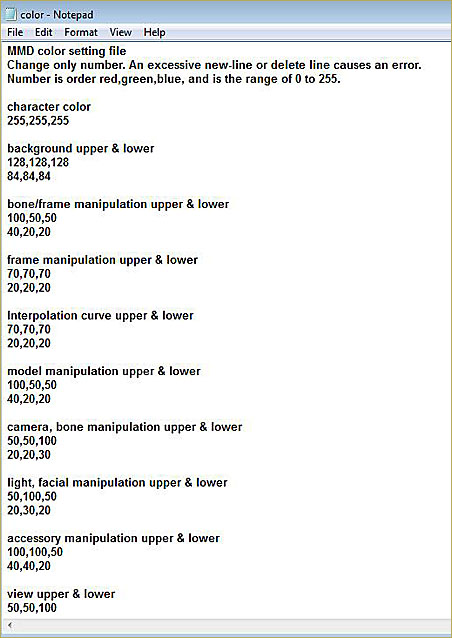
Okay so yea holy heck this is confusing right? Well no, no it’s not so confusing because these are all just RGB color codes like you use in MMD. Think of it like lighting sliders on the Lighting 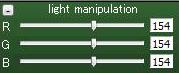 manipulation panel!
See? Not so bad! Now we need to open the link for that Color Chart, down below, if you haven’t already, to help us out a little… or a lot. You also might wanna open the copy of MMD you got this color file from so you know what you wanna change. Pro tip: everything works on gradients, and generally goes from (insert color here) to some super sheer black version of (previously inserted color here), and I hope you can see it here but it’s pretty hard, so I’ll show you the old version and my new version for comparison.
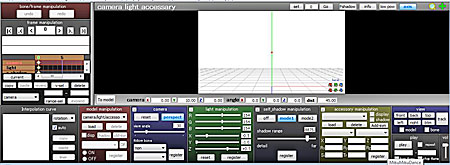
Please note that you will have gradient all the time unless you make both top and bottom numbers the same. The sliders don’t care for gradients though and are not here for our rules. They are rebellious. Be careful with very bright colors like on the bottom of accessory manipulation, or you risk a white out of the text. There is also a glitch with camera that applies the lower color to the lower color of lighting manipulation, but can occasionally be fixed by changing camera first, so try to find something that matches both of the colors you choose, like black or grey.
Also, when you change something like lighting manipulation, it matches a panel in your interface while adjusting the model. Here is an example of what shared colors will look like:
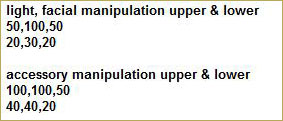
As you can see, accessory manipulation is its own thing, but light and facial share colors. So pick something you like a lot for shared colors.
But Fia, you say, I don’t know how to pick my colors! And I might not understand RGB and pretty much just wing it with the lighting sliders! Yea I hear you. And that’s why you have this link, here: http://www.w3schools.com/colors/colors_picker.asp
It leads to a color picker, that, as of June 5 2016, should look something like this…
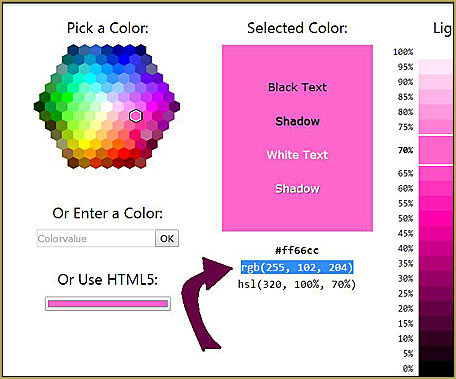
You wanna use the part I highlighted for your colors, the part between (parenthesis), when you find a color you like. A very handy tool for lots of things, I suggest bookmarking it! Now let’s see how you can use this to figure out what part of the screen you are currently changing. Because even with everything labeled, it gets confusing.
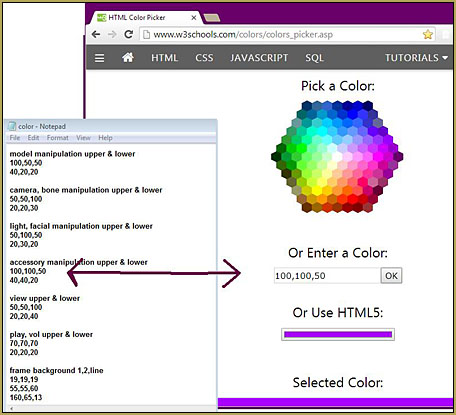
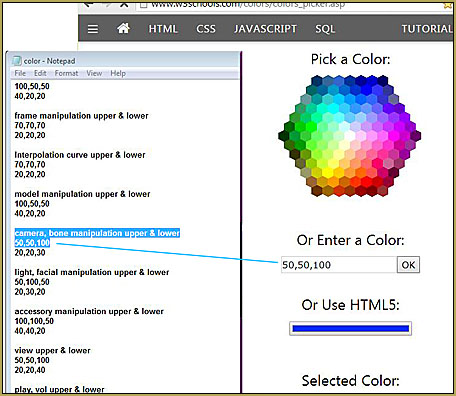
As you can see by the above images, inputting a color from the page to the color picker will show you what yer working with. I suggest brighter colors for the ones you don’t use a lot- it’s a handy reminder that they exist and can help you while you animate! That’s what I’ve done with the interpolation curve in the gradient examples.
I think I’ve given you all I can to work with right now! Just remember to re-open MMD when you make a change. You must also save the file before it takes effect.
Before I let you go, I have some advice on what NOT to change:
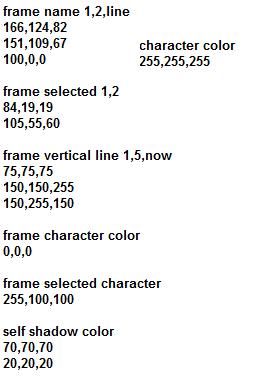
Changing these can quickly become complicated, and I would honestly leave them be while you figure it out for the first time. I’ll write a new article about these another time along with a color study to help decide what colors are best in a psychological sense. (red can cause anxiety, whereas blues are very calming, and yellow -no surprise- makes people happy but a little anxious)
For the last bit, I’m going to provide my own colors for you to check out in case you liked what you saw above!
____________________
background upper & lower
128,128,128
84,84,84
bone/frame manipulation upper & lower
0, 0, 102
0, 0, 77
frame manipulation upper & lower
70,70,70
20,20,20
Interpolation curve upper & lower
230, 138, 0
204, 51, 0
model manipulation upper & lower
204, 0, 153
204, 0, 0
camera, bone manipulation upper & lower
51, 204, 51
0,0,0
light, facial manipulation upper & lower
255, 0, 0
40,40,20
accessory manipulation upper & lower
0, 102, 255
102, 255, 255
view upper & lower
255, 204, 0
204, 204, 255
play, vol upper & lower
153, 0, 153
102, 0, 102
_________________________________
Welp, this is the end!
I hope you have fun changing the colors around, and I’ll SeeU next time!
– SEE BELOW for MORE MMD TUTORIALS…
— — —
– _ — –









This was a cool and easy tutorial. But I am having problem
I’m trying to change the colour of my frame manipulation box but there is this pinkish-red colour that insists on staying there no matter how many times I alter the text.
After some messing around, I have found that a unusual colour shows up when you’re trying fade a lighter colour into a darker one. More specifically, the darker blue.
Is there any way to fix this?
If you want a screenshot, then I can send you one.
Hello ! ^^ how to change the colors of the white buttons and sliders please ?
Your the best learnmmd
Thank you for the tutorial! I have trouble reading some of the text due to the background colours, so now that I know how to edit the colours myself I can make the GUI more accessible.